Field Photo App: What Each Trade Needs on the Photo
What a field photo app must put on each photo for technicians, construction, delivery, insurance and retail teams, plus the flow from shot to client.
“Take a photo on site and send it back” is daily work for technicians, site engineers, couriers, adjusters and retail reps. The phone’s built-in camera takes good pictures, but photos sent through chat usually lose their time and location, and nobody can be sure the photo is from today. A field photo app fixes exactly that.
This guide does not rank apps. It helps you decide what a field photo in your trade must carry, and then pick an app that delivers it. A detailed scoring checklist is in how to choose a GPS camera app.
How a field photo differs from a normal photo
A field photo that works for business answers four questions:
- When? A trustworthy time that does not follow the phone clock.
- Where? Address or coordinates, with accuracy when GPS is weak.
- What job? Project, work item, order number, asset ID.
- Who took it, and was it edited? The photographer, and a way for recipients to check it.
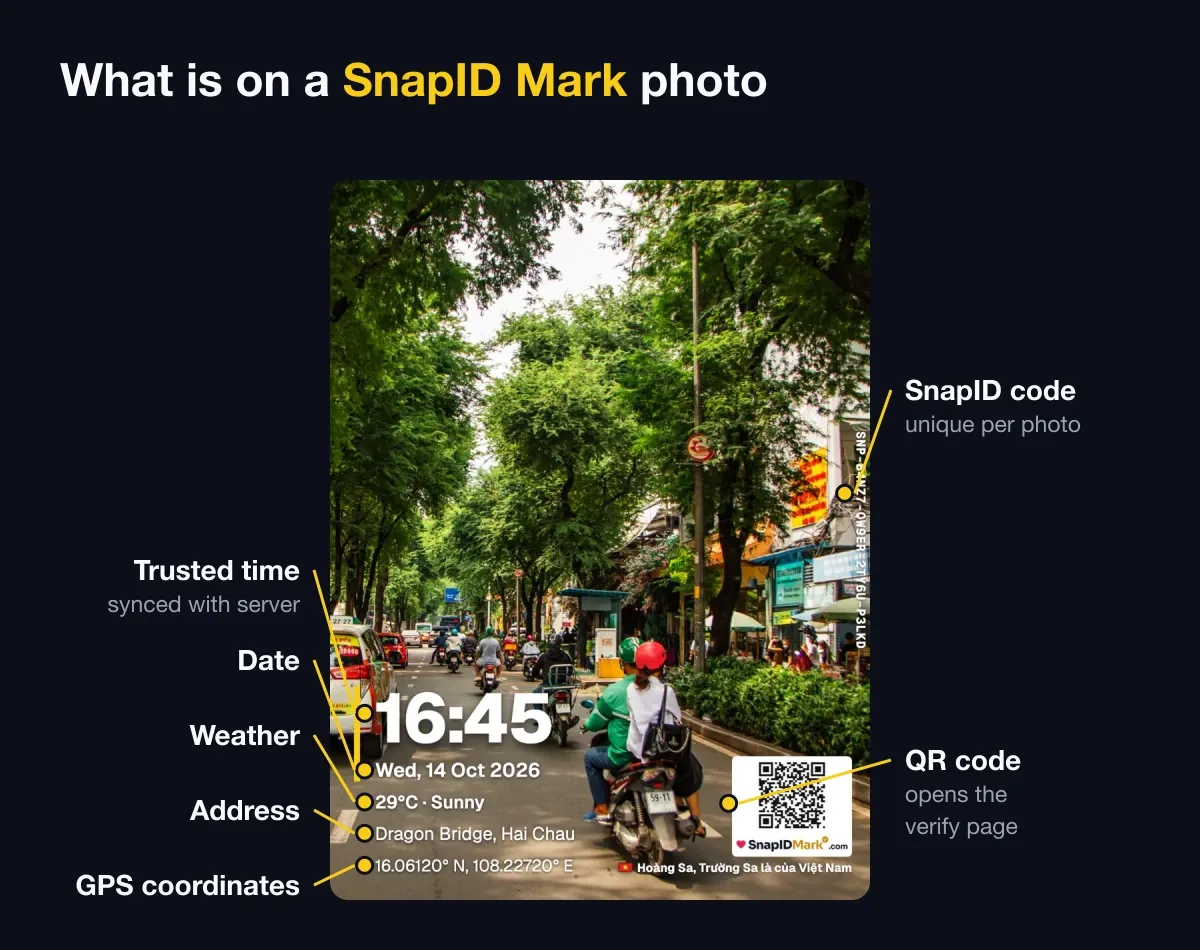
Most timestamp cameras handle 1 and 2. Question 3 needs company-defined fields. Question 4 needs a verification code or a way to compare the file with the original. See timestamped vs verifiable photos.
Photo layout by trade
| Trade | What the photo should show | Most important shot | Detailed guide |
|---|---|---|---|
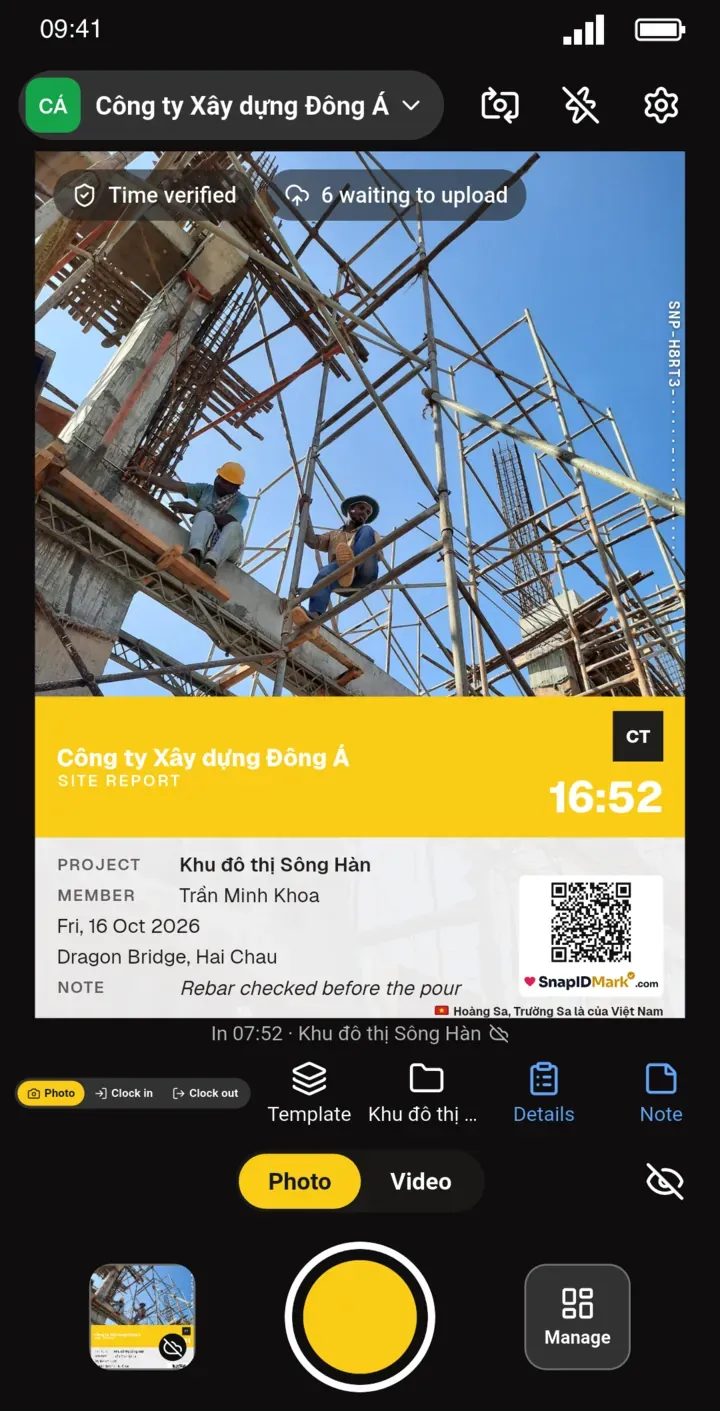
| Construction | Project, work item, grid or floor, weather | Inspection photo before work is covered | inspection photo checklist |
| Maintenance, technicians | Asset ID, work order, BEFORE and AFTER labels | Before and after the repair | before and after photos |
| Site survey | Direction, scale reference, coordinates | Wide shot then details | site survey photo guide |
| Delivery | Order number, recipient name if allowed | Parcel at the door | proof of delivery photos |
| Cleaning, facilities | Area, shift, DONE label | Photo after completion | cleaning photo proof |
| Insurance, claims | Claim number, plate, damage notes | Wide shot then close-ups | insurance claim photos |
| Retail, field sales | Store code, route, display type | Storefront and shelf | store visit photos |
| Rentals | Address, room, handover date | Each room at move-in and move-out | rental condition photos |
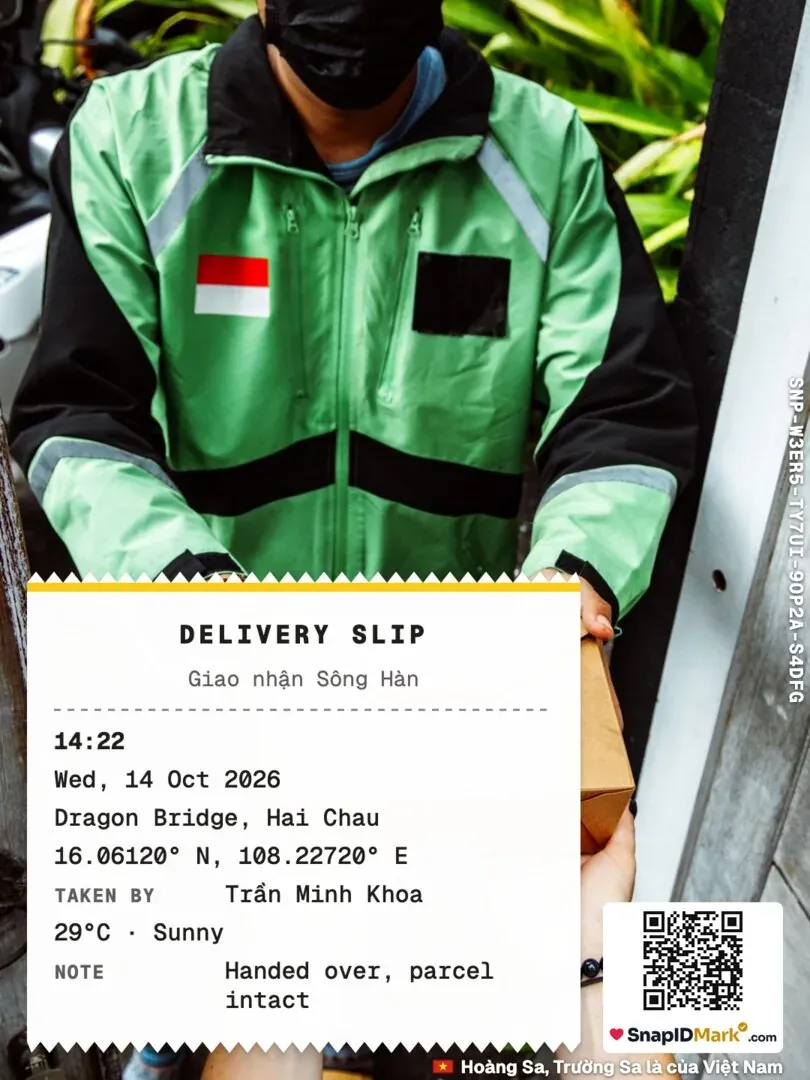
The common thread: the “what job” part should be required fields defined by the company, not free-text notes each person writes their own way.
Seven features worth having
- Trusted network time that stays correct offline.
- Precise location and a warning when GPS is weak.
- Blocking or flagging fake locations.
- Company-set stamp templates that staff cannot change.
- Custom fields such as order number or work item, optionally required.
- A verification code or QR so recipients can check for themselves.
- Grouping and export by project, date and photographer to PDF, Excel and ZIP.
The flow from shot to client
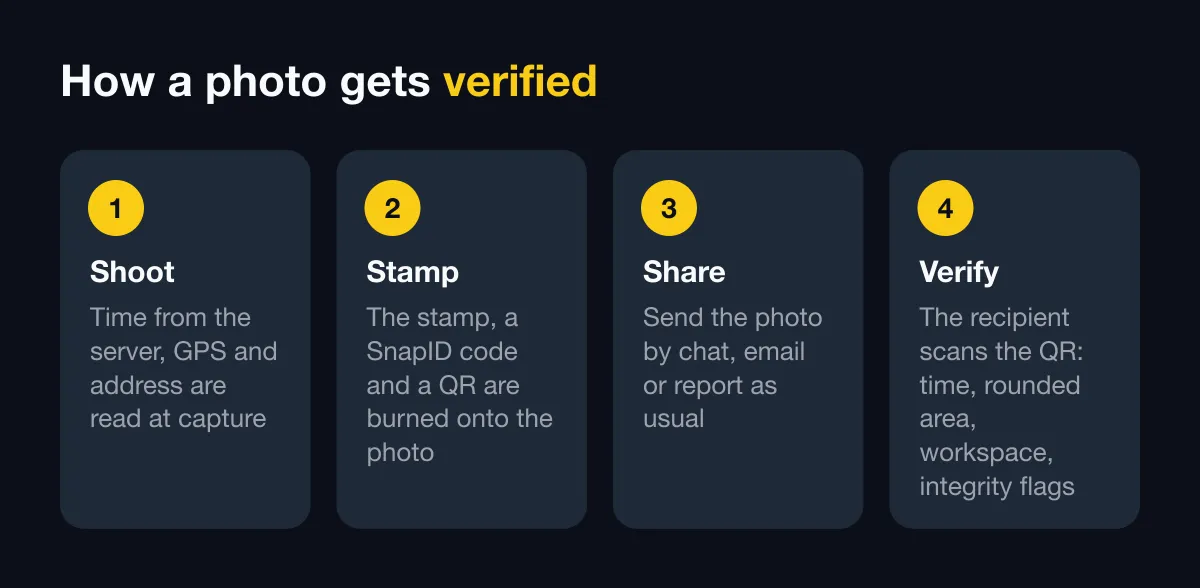
- Before the shift: the Owner or an Admin picks the stamp template and required fields for the project.
- On site: staff fill in the job details once, and the app remembers them for the next photos. Wide shot first, then close-ups.
- No signal: keep shooting. Photos are saved on the phone and upload to the workspace when signal returns.
- End of day: the manager filters by project and exports a report. For naming and folders, see how to organize field photos by project.
- Sending out: send the original file with its verification link, or a time-limited share link. To keep details intact in chat apps, see send original photos without compression.
Where SnapID Mark fits
- The stamp uses trusted network time, so changing the phone clock does not change the time on the photo.
- Workspaces require precise location and block capture while a mock-location app is on. See Location and GPS.
- Admins set required stamp templates, and members can only shoot with those. See Stamp templates.
- Custom fields: text, number, list, date or checkbox, optionally required.
- Every photo has a SnapID code and QR. The verify page is private by default: it shows information only, with the area rounded to about 1 km, and no photo unless you create a share link. See Verify a photo.
Not yet available: API or integrations, SSO. A SnapID code is not a legally certified timestamp.
See a 6-step routine to track work progress with photos in any industry.
FAQ
Is the phone camera with location turned on enough?
For personal photos, yes. For work, the time and location live only in metadata, get lost in chat apps and are not visible on the image. See how to find the GPS coordinates of a photo.
Should photos carry the company logo?
If they go to clients, yes. See add a company logo to photos.
Which apps are free?
Many timestamp cameras have a free tier. See the best timestamp camera apps.
Get started
Download SnapID Mark to try it for personal use, then create a company workspace on the admin website when you want one template for the whole team.