
How to Find the GPS Coordinates of a Photo
See where a photo was taken on iPhone, Android, Windows and Mac, open the coordinates in Google Maps, and learn why photos lose location data when shared.
You receive a site photo and want to know where it was taken. Or you need to send a colleague the exact coordinates of a spot. This guide shows how to find a photo’s GPS coordinates on common devices, why many photos have no location, and how to keep coordinates from getting lost when you share.
Where coordinates live in a photo
There are two places:
- Hidden in the file’s data (EXIF). With location on, the camera app writes latitude and longitude into the file. You don’t see it on the image and have to open the photo details.
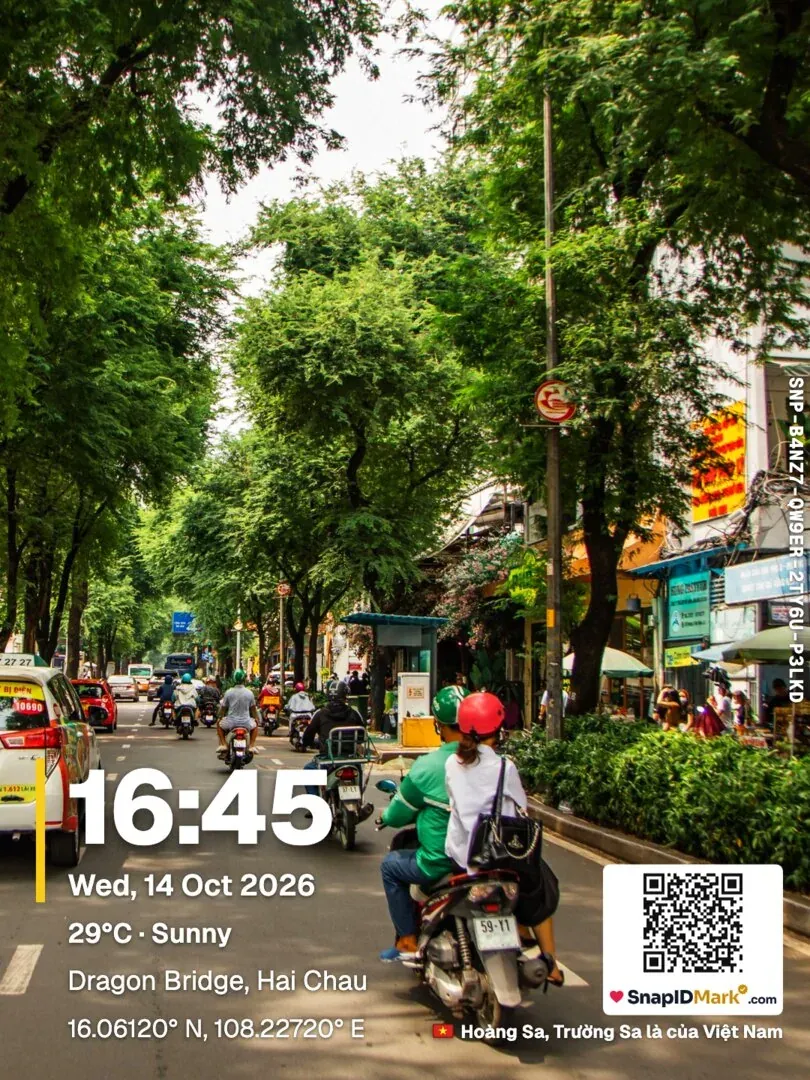
- Printed on the image. Stamp cameras such as SnapID Mark print coordinates, address and time onto the pixels. Anyone looking at the photo sees them.
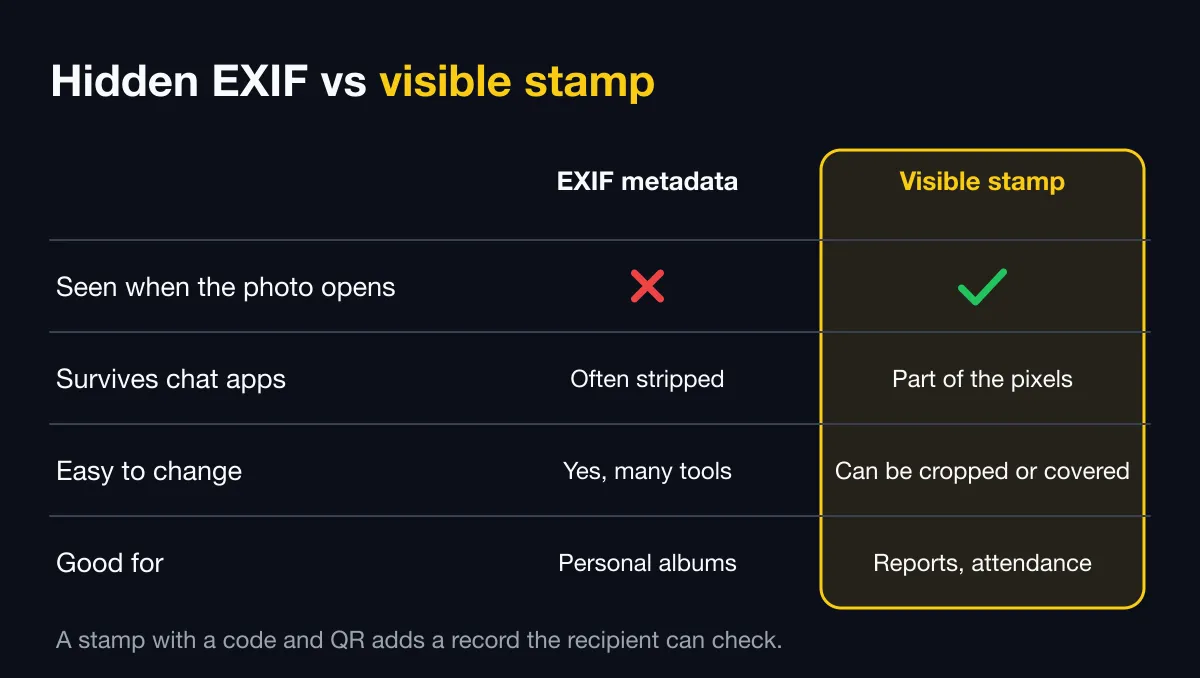
EXIF is convenient but easy to lose and easy to edit. Printed text survives sharing but is still just text, so you need a way to verify it. See timestamp photos vs verifiable photos.
On a phone
iPhone
- Open the photo in the Photos app.
- Swipe up or tap the i (info) button.
- If the photo has a location, a small map appears. Tap it to see more.
Android
- Open the photo in Google Photos or the manufacturer’s gallery.
- Swipe up or tap the info icon, or the three-dot menu and Details.
- The location section shows a map or address. Some phones also show latitude and longitude.
Button names vary by manufacturer and version. If you don’t see the numbers, copy the photo to a computer.
On a computer
Windows
- Right-click the photo file and choose Properties.
- Open the Details tab and scroll to GPS.
- You will see Latitude and Longitude, usually in degrees, minutes and seconds.
Mac
- Open the photo in Preview.
- Choose Tools › Show Inspector.
- Open the info tab and choose GPS if it is there.
Open the coordinates in Google Maps
Google Maps accepts both formats:
- Decimal:
10.7769, 106.7009(latitude first, then longitude). - Degrees, minutes, seconds:
10°46'36.8"N 106°42'03.2"E.
Paste either into the Google Maps search box to see the spot. Swapping latitude and longitude puts the pin somewhere completely different, so check the order.
Why a photo has no coordinates
- Location was off at capture, or the camera app had no location permission.
- The photo went through a chat app or social network. Many apps compress photos and strip EXIF when sending.
- It is a screenshot or was saved from an editing app.
- GPS had no fix indoors or in a basement.
To understand coordinate error, read phone GPS accuracy explained.
Can you trust coordinates in a file?
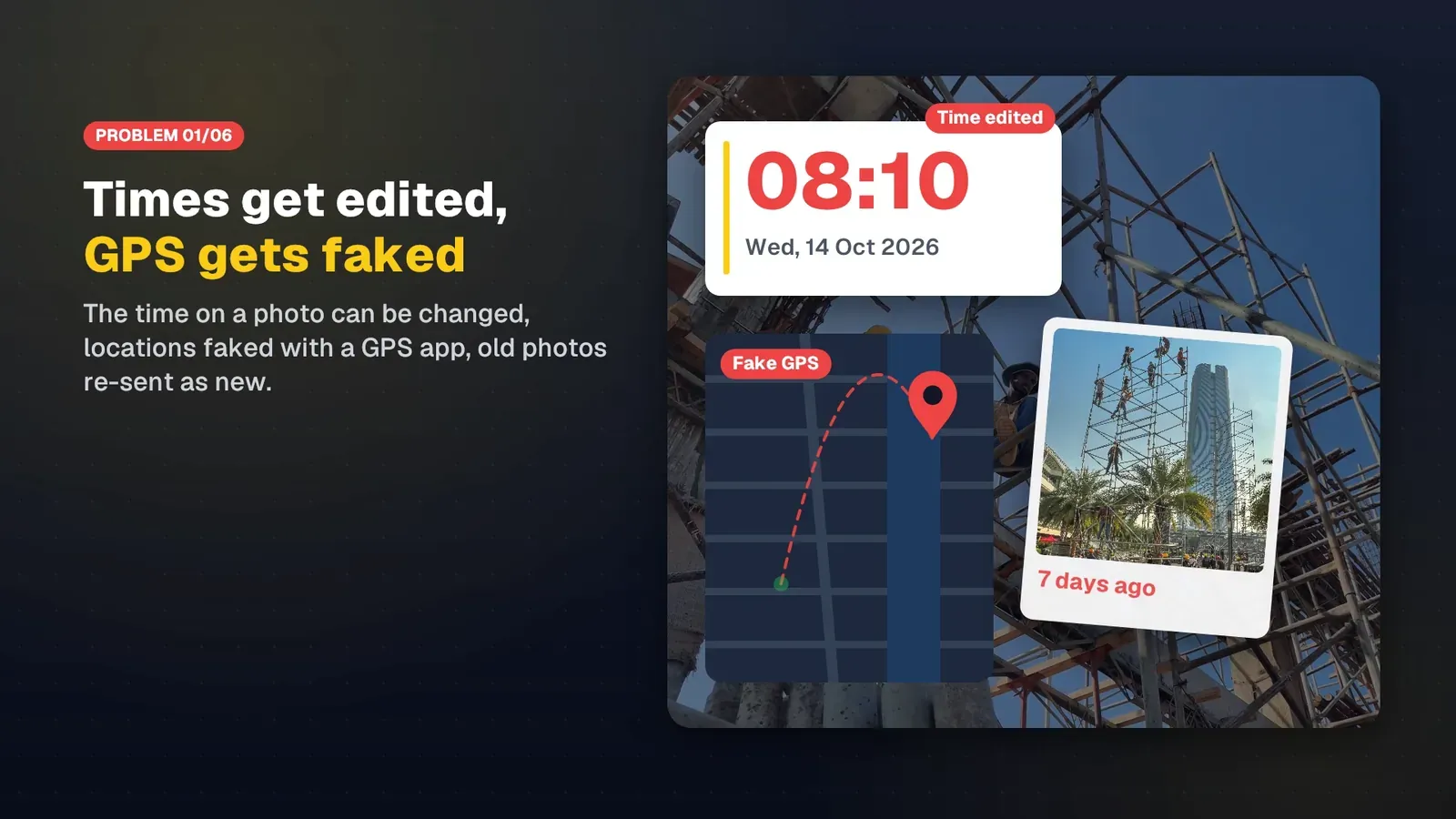
Not entirely. EXIF can be rewritten with free tools in seconds, and a mock-location app can feed false coordinates at capture. For work, attendance or claims photos you also need:
- Fake location detection. In workspaces SnapID Mark blocks capture while a mock-location app is detected.
- A code that looks up the original record. Every SnapID Mark photo has a SnapID code and QR. The recipient scans the QR to see the capture time and area and compare the file with the original.
With SnapID Mark photos
- Coordinates are printed on the stamp if the template includes them, along with the address and a mini map. See The stamp and stamp templates.
- Owners and Admins see the location on a map in the photo details on the admin website. See Browse and filter photos.
- The public verify page shows only an area rounded to about 1 km, never the exact spot, to protect the photographer. See Check a SnapID code.
A note on privacy
Coordinates in a photo can reveal your home. Check the location before posting personal photos publicly. For work photos, record coordinates only when needed and explain it to staff in your photo attendance policy.
FAQ
Can I add coordinates to a photo after taking it?
Some software lets you write coordinates into a file afterwards. That is exactly why coordinates in a file are not reliable evidence. If you need located photos, use a camera that records the location at capture. See how to add date, time and location to photos.
Do chat apps remove coordinates?
Hidden data may be removed. Coordinates printed on the image stay. See how to send original photos without losing quality.
Get started
Download SnapID Mark to take photos with coordinates, trusted time and a verification code. Manage your team’s photos on the admin website.
iPhone, Android, Google Photos, Google Maps, Windows, Mac and other names are trademarks of their respective owners and are used for descriptive purposes only. Button and menu names may differ between versions.