Send Original Photos Without Losing Quality or Data
Why chat apps compress photos, strip location data and break the match with the original, how to send originals, and how to share photos people can verify.
You take a sharp handover photo, send it through a chat app, and the client replies: “too blurry, I can’t read the meter”. Or the accountant opens it and the location data is gone. This happens all the time, and the cause is how chat apps handle photos.
This guide explains what a photo loses in a chat app, how to send originals, and how to share site photos so recipients can still verify them.
What a photo loses in a chat app
To send fast and save data, Messenger, WhatsApp and similar apps often recompress photos sent the normal way. The result:
- Lower resolution. Small text, meter readings and labels can blur.
- Hidden data (EXIF) may be stripped, including capture time and GPS coordinates in the file.
- The received file is a different file. It looks the same, but the bytes have changed.
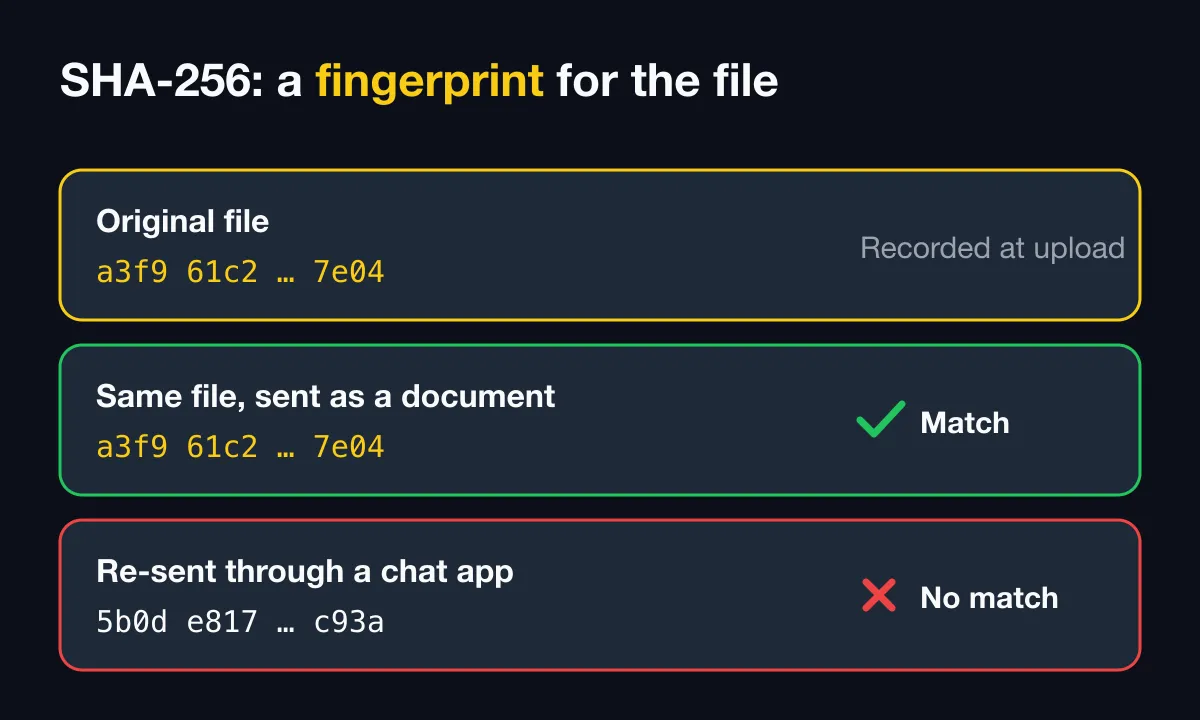
The third point is easy to miss but matters for evidence. When the recipient compares the file’s SHA-256 fingerprint with the original, a recompressed photo won’t match, even though it is genuine.
How to send originals
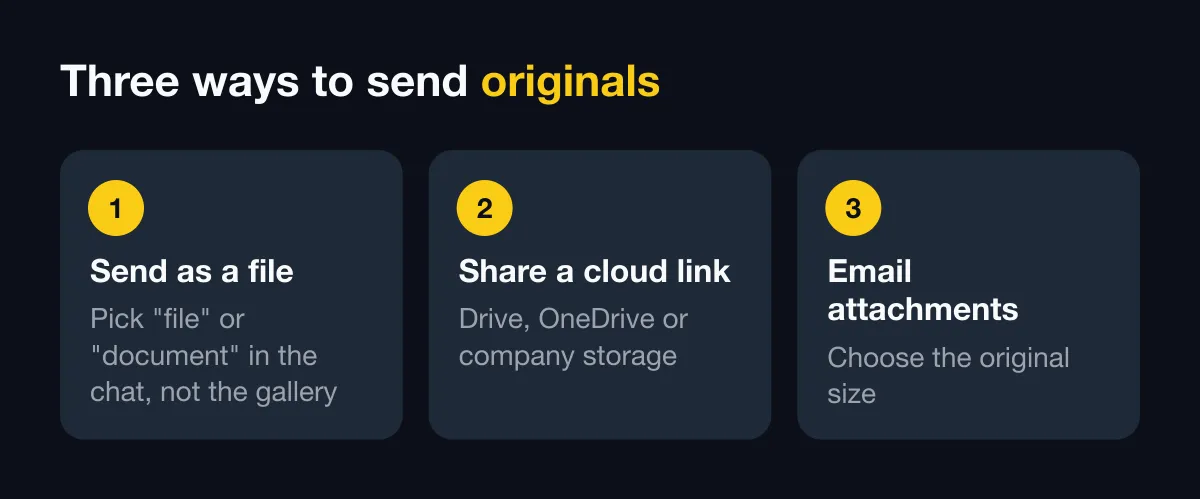
1. Send as a file or document
In the chat, instead of picking a photo from the gallery, choose send file or document (a paperclip or document option, depending on the app) and pick the photo file. The app sends the file as is. The recipient has to download it to view it, and it uses more data.
Some apps offer a high-quality option in the photo picker. It makes photos sharper but does not always keep the exact original file. If you need the file byte for byte, send it as a document.
2. Share a cloud folder link
Upload to Google Drive, OneDrive or company storage and send the link. Good for many photos at once. Check the link’s sharing permissions before sending it outside.
3. Email as attachments
Good for formal records. Some phone mail apps offer to shrink photos, so choose the original size.
With SnapID Mark photos: what to send
SnapID Mark photos have an advantage: the key details are printed on the image (time, address, coordinates if the template includes them, SnapID code, QR). Compression cannot remove them. For full verification, pick one of these.
A time-limited share link
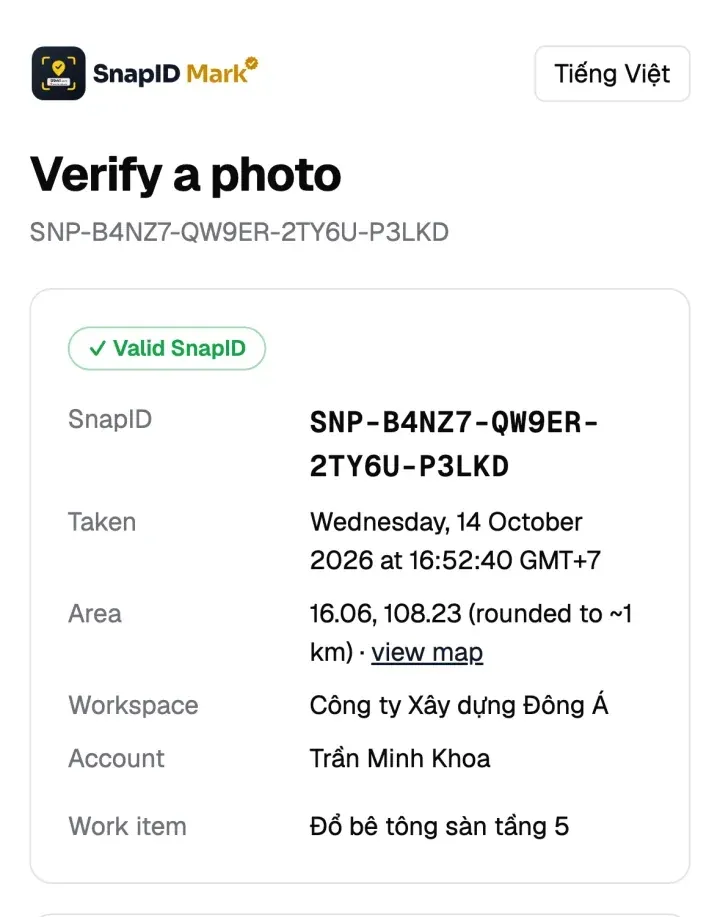
The photographer (in the app) or an Owner / Admin (on the admin website) creates a share link for the photo with a duration of 1 hour, 1 day, 7 days, 30 days or a custom length. Whoever opens it sees the stamped photo with all verification details. Once it expires or is revoked, the page shows only the details, not the photo. Only uploaded photos can be shared this way. See Time-limited share links.
Send through chat as usual, the recipient scans the QR
The recipient scans the QR on the photo to open the verify page and see the capture time, area (rounded to about 1 km), workspace and integrity checks. They don’t need the original file to know the code is genuine. See Scan the QR code.
Send the original file for a byte-for-byte check
If the recipient wants to pick a file and compare its SHA-256 fingerprint, send it as a document. A recompressed file shows No match. That does not mean the photo is fake, only that the chat app changed the file. The verify page says so too. See Check a SnapID code.
Personal photos that were never uploaded
Personal photos stay on the phone and are not uploaded automatically. The verify page still checks the SnapID code but has no file to compare with. Send the original as a document together with the verification link.
A sharing rule for your team
A short rule avoids misunderstandings with clients:
- Quick daily updates: send through chat as usual, clients scan the QR if needed.
- Handover and acceptance photos: send a time-limited share link or a PDF export from the admin website.
- Photos that may matter in a dispute: keep originals in the workspace and send files as documents only on request.
Put it in your internal guide together with how to organize field photos by project.
If your chat group doubles as the team’s photo archive, read replace chat groups for photo reports. If Drive is your long-term photo archive, read Google Photos alternative for field photos.
FAQ
Why does my photo show “No match” on the verify page?
Almost certainly because it was recompressed by a chat or email app. Ask the photographer for the original file or a share link.
Does sending a photo as a file keep the location?
Yes. Sending as a document keeps the file unchanged, including any location data. See how to find the GPS coordinates of a photo.
Can a screenshot be verified?
A screenshot is a new file, so it cannot be compared with the original. If the QR is clearly visible, the recipient can still scan it to see the verification details.
Get started
Download SnapID Mark so every photo carries a SnapID code and QR that can be checked wherever it is sent. Learn more in detect edited photos with SHA-256.
Messenger, WhatsApp and other names are trademarks of their respective owners and are used for descriptive purposes only. Button names and options may differ between app versions.