How to Add a Company Logo to Photos as You Shoot
Add your company logo to field photos automatically at capture: preparing the file, position and opacity, a logo per project, and common mistakes to avoid.
Site photos sent to clients look far more professional with the company logo, and they are harder for someone else to pass off as their own. Many people shoot first and then add the logo to each photo in an editing app. That works for a few photos, not for a few hundred a week.
This guide shows how to add the logo automatically at capture, for one person and for a whole team.
Why add the logo at capture, not afterwards
- It saves time. No opening photos one by one.
- It is consistent. Every team photo has the logo in the same place and size.
- Originals stay originals. A photo with a logo added in an editor is a new file. If the photo is ever used as evidence, the edited file no longer matches the original. See detect edited photos with SHA-256.
Prepare the logo file
- Square. Put a wide logo in the middle of a square canvas with a transparent background.
- Transparent PNG looks best. SnapID Mark accepts PNG, JPG or SVG up to 1 MB.
- Enough contrast. A dark logo disappears on dark photos. Keep a white version if your crew often shoots indoors or at night.
- Not too detailed. A small logo in a corner should still read at fingertip size.
Option 1: a personal logo on your phone
For when you work alone in Personal.
- Open SnapID Mark, tap Info under the camera and open the Logo tab.
- Choose Upload my logo and pick the file.
- Turn on Show logo on photos and adjust the opacity if you like.
- Take test photos in bright and dark places.
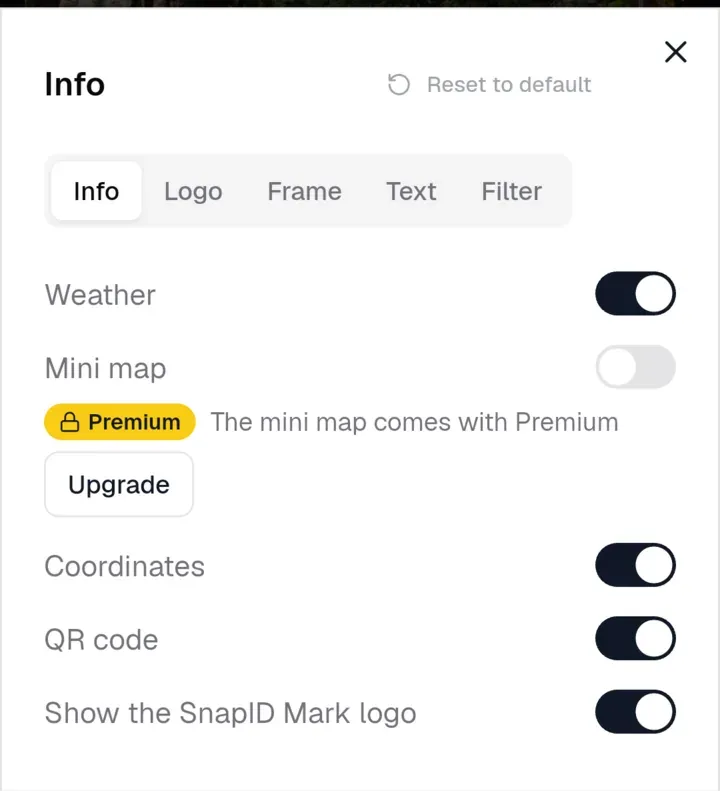
This needs an account and is not available in guest mode. Details in Logo on photos.
Option 2: a company logo for the whole team
For workspace Owners and Admins. Members don’t need to do anything, the logo appears on their photos.
- Sign in to the admin website, go to Company info › Logo library and upload the logo.
- Click Make default on the shared logo.
- If a stamp template or project needs a different logo (for example the owner’s), pick a logo for that template or project.
- Set the position (9 positions on the photo), size and opacity, preview and save.
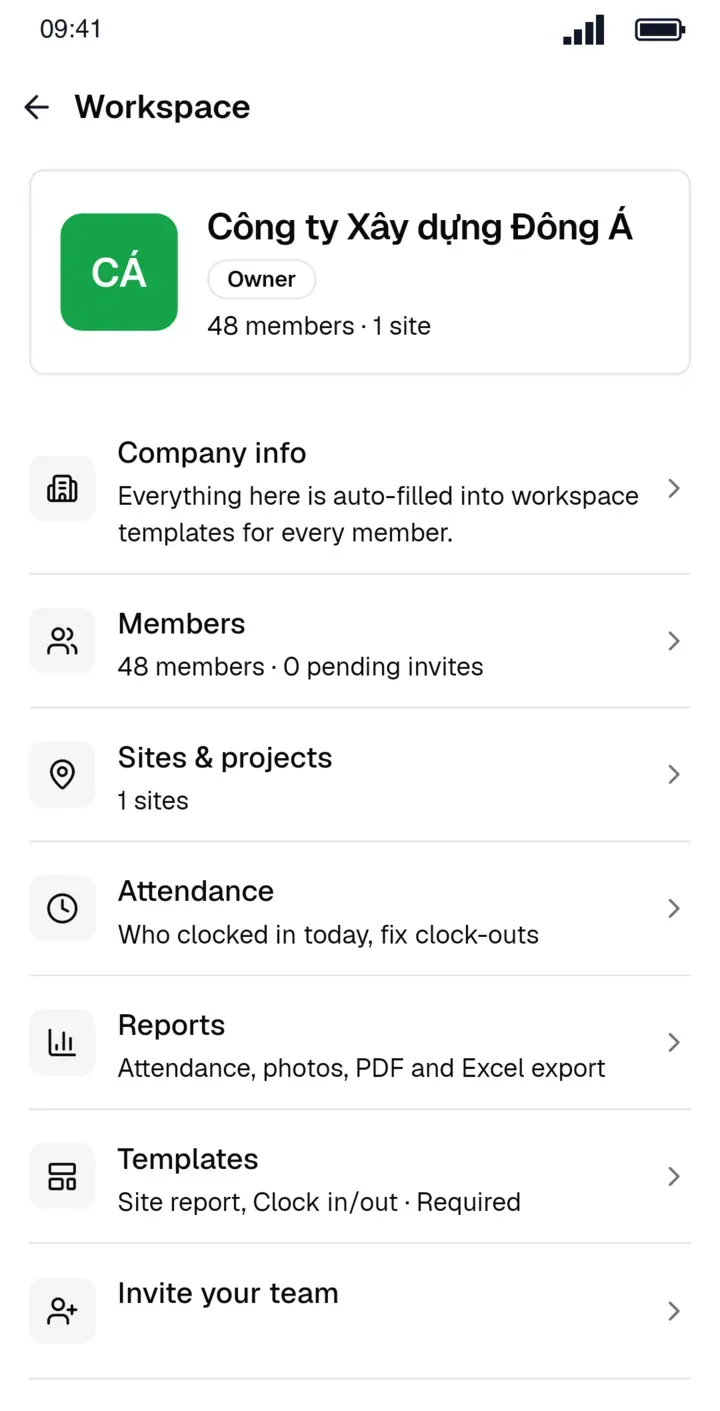
The app picks the logo in this order: the template’s logo, then the project’s, then the company default. See Logos for templates and projects.
Where to put the logo
| Position | Good for | Watch out for |
|---|---|---|
| Top right corner | Most site photos | Rarely covers the subject |
| Bottom, next to the stamp | Logo and details as one block | Don’t let stamp and logo overlap |
| Centre, low opacity | Photos sent outside that might be reused | May hide important detail |
For readable stamp layouts, see design a photo stamp template for your team.
Common mistakes
- The logo is stretched or cropped: the file is not square. Put it on a square canvas first.
- An ugly white box around the logo: use a transparent PNG instead of JPG.
- Staff don’t see the logo: check the required template and the project selected on the camera. A template logo takes priority over a project logo.
- The app says the template sets its own logo position: the template has a fixed logo position. Change it in the template on the admin website.
A logo is not verification
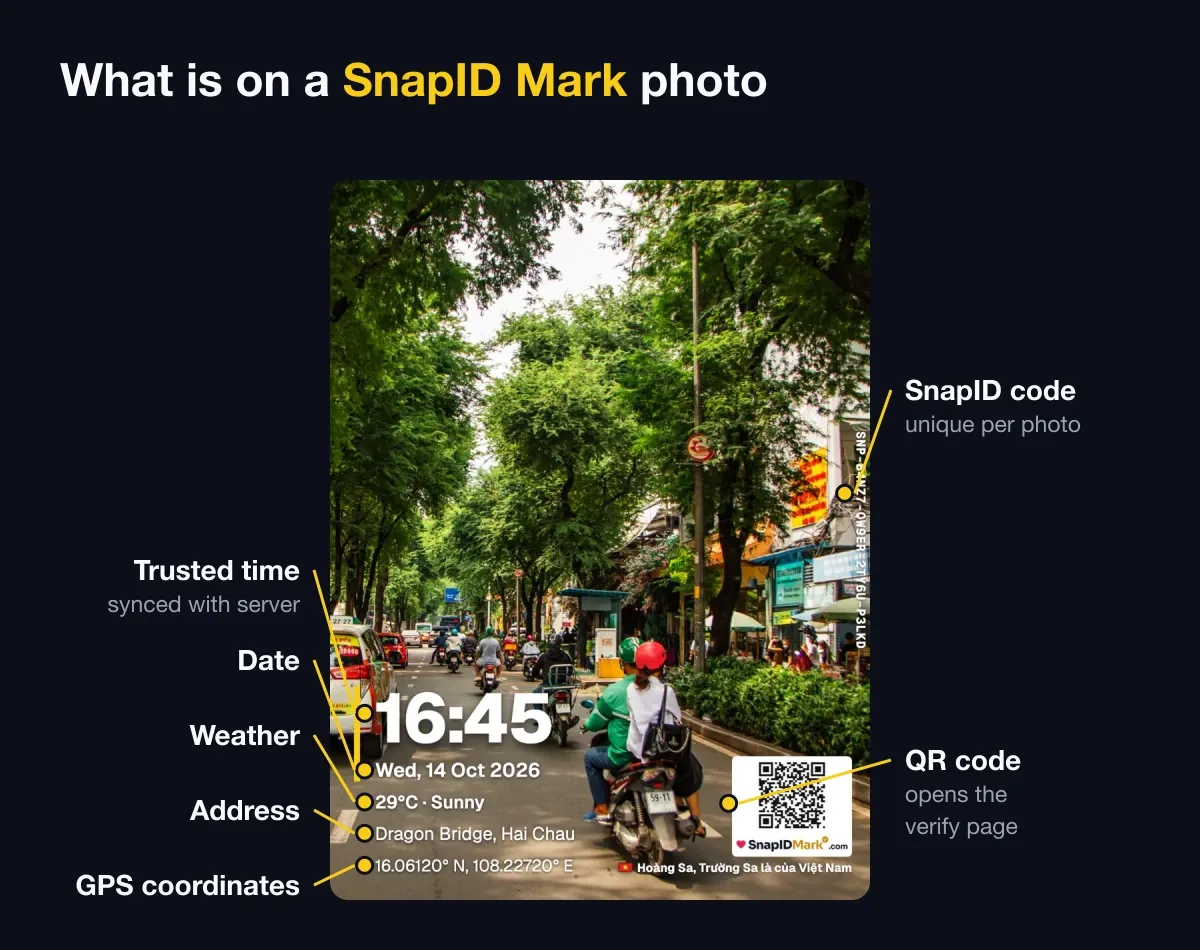
A logo says which company a photo belongs to, but anyone can paste your logo onto another photo. So that recipients can check a photo is genuine, every SnapID Mark photo also has a SnapID code and QR that open a verify page. See QR photo verification.
FAQ
Can I add a logo to photos I took earlier?
SnapID Mark adds the logo at capture and does not edit old photos. For old photos you need an editing app, and the edited file is no longer the original.
Can each project have its own logo?
Yes. Pick a logo per project on the admin website.
Will the logo hide the QR code?
Not if you place it away from the QR. Preview on the admin website before saving.
Get started
Download SnapID Mark and try a personal logo now, or open the admin website to set one for your team. See also construction photo apps with GPS.