How to Track Work Progress with Photos (Any Industry)
Track work progress with photos: same-angle shots, milestones, job code fields, filters by project and member, a weekly review and tool options compared.
A manager asks “how far along is the job at the client’s site?” and gets back “almost done”. How done is almost done? A photo answers that faster than any message. But photos dropped into a group chat, each from a different angle with no job name, are hard to find a week later, even for the person who sent them.
This is a practical guide to tracking work progress with photos for cleaning, maintenance, installation, retail fit-outs and construction. We make SnapID Mark, so we will be clear about what the app does, what it does not do, and when another tool is the better fit.
Why tracking work progress with photos works
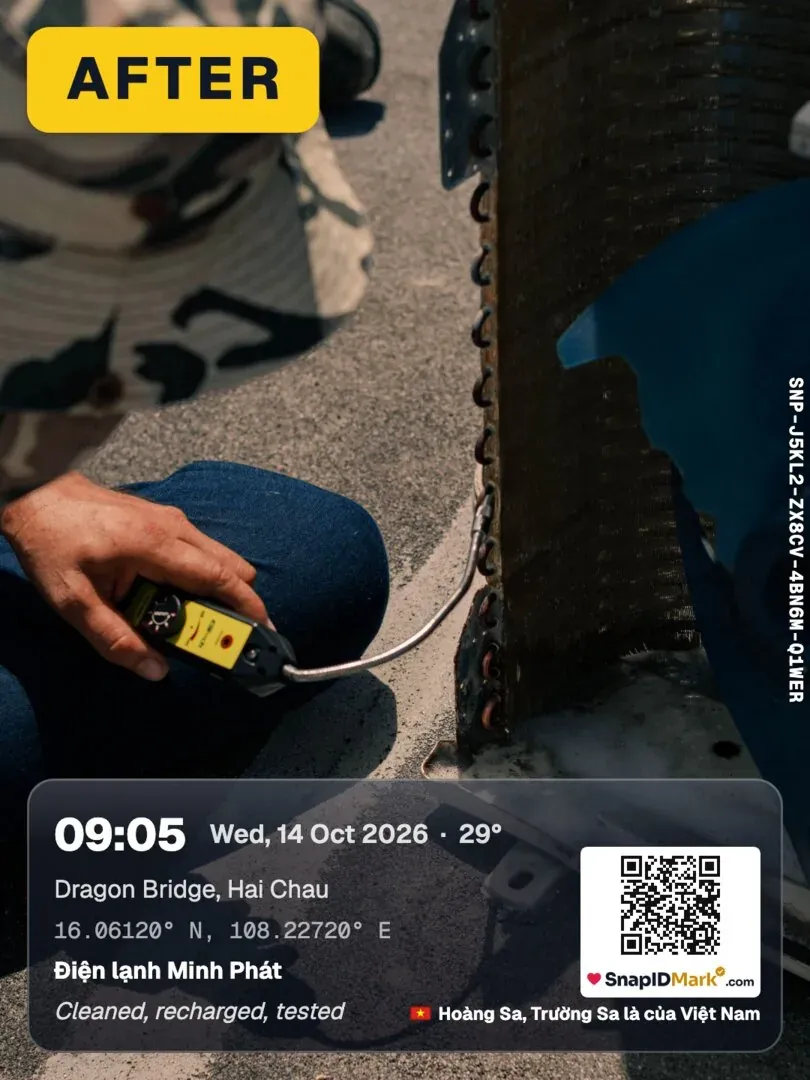
A good photo does three jobs at once: a status update, a quick inspection record and evidence if there is a dispute later. To do all three, a progress photo needs four things:
- A trustworthy date and time that does not depend on the phone clock. If the time comes from the phone clock, the photographer can change it.
- A location, so you know it was taken at the client’s site and not somewhere else.
- Job context: job code, stage, client name, so the photo tells you where it belongs.
- The same angle each time, so anyone can compare before and after.
The fourth one is the most common gap. Ten photos from ten angles prove someone showed up. They do not show how much the work moved.
Ways to track progress with photos: options compared
No single tool suits every team. The table compares four common approaches. Details about Trello and Asana come from their official pages as of October 2026.
| Chat groups (WhatsApp, Zalo…) | Shared Google Drive folder | Work management tools (Trello, Asana) | Field photo app (SnapID Mark) | |
|---|---|---|---|---|
| Getting started | Instant, everyone has it | Quick, needs folder rules | Set up boards or projects | Install the app, create a workspace |
| Task assignment, due dates | No | No | Yes, their core strength | No |
| Gantt, timeline | No | No | Asana has Timeline and Gantt views; Trello offers Timeline on paid plans | No |
| Photos | Posted into the conversation, often compressed | Files uploaded to folders | Attached to cards or tasks; Trello uses uploaded images as card covers | Each photo is sent to the company workspace |
| Time and location on the photo | No | No | No | Server-synced time, GPS, address |
| Job code or stage on the photo | Typed in the message | Manual file names | Lives on the card, not on the photo | Custom fields printed on the stamp |
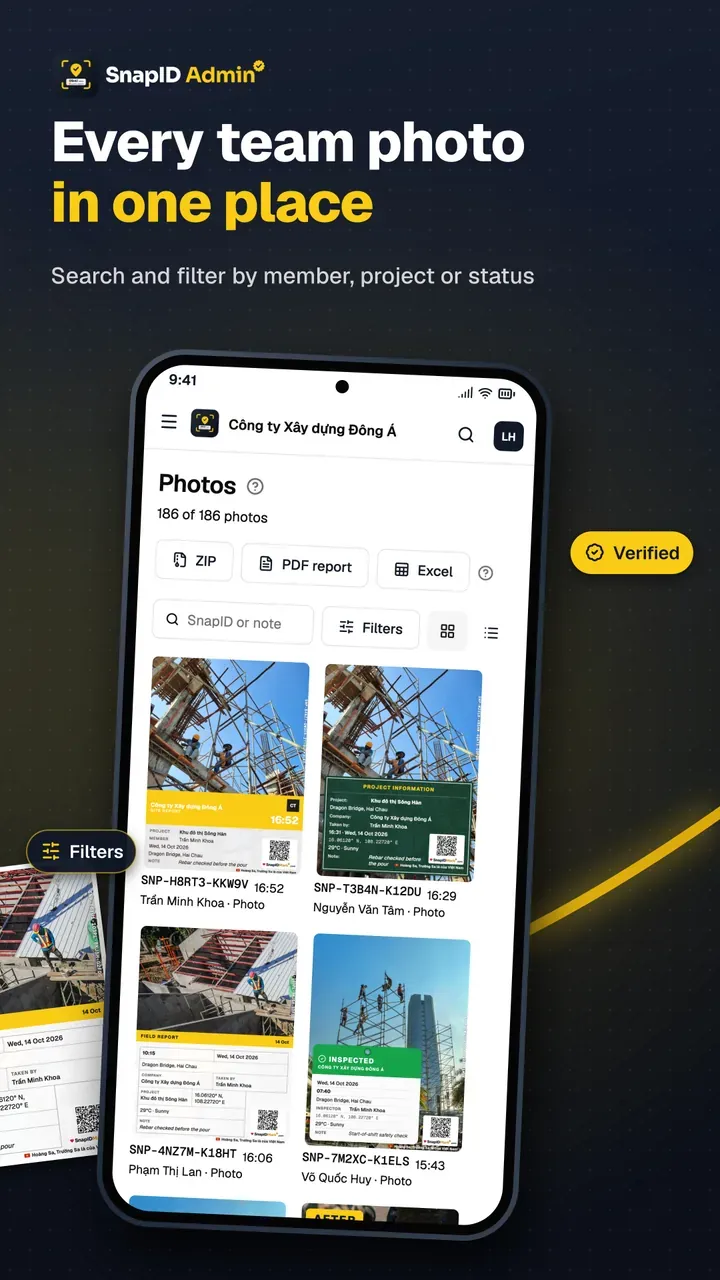
| Filter by member, project, date | Scroll by hand | Folder structure | By board, labels | Filters on the admin website |
| Outsiders can verify a photo | No | No | No | SnapID code, QR, SHA-256 match |
How to read it: if your main problem is assigning work and chasing deadlines, Trello or Asana do that better. If your main problem is photos nobody trusts and nobody can find, a field photo app fixes exactly that. Many teams use both: tasks in a work management tool, progress photos in a stamping app.
For chat groups and Drive specifically, see replacing chat groups for photo reports and Google Drive and Google Photos for field photos.
Set up a photo progress tracking routine in 6 steps
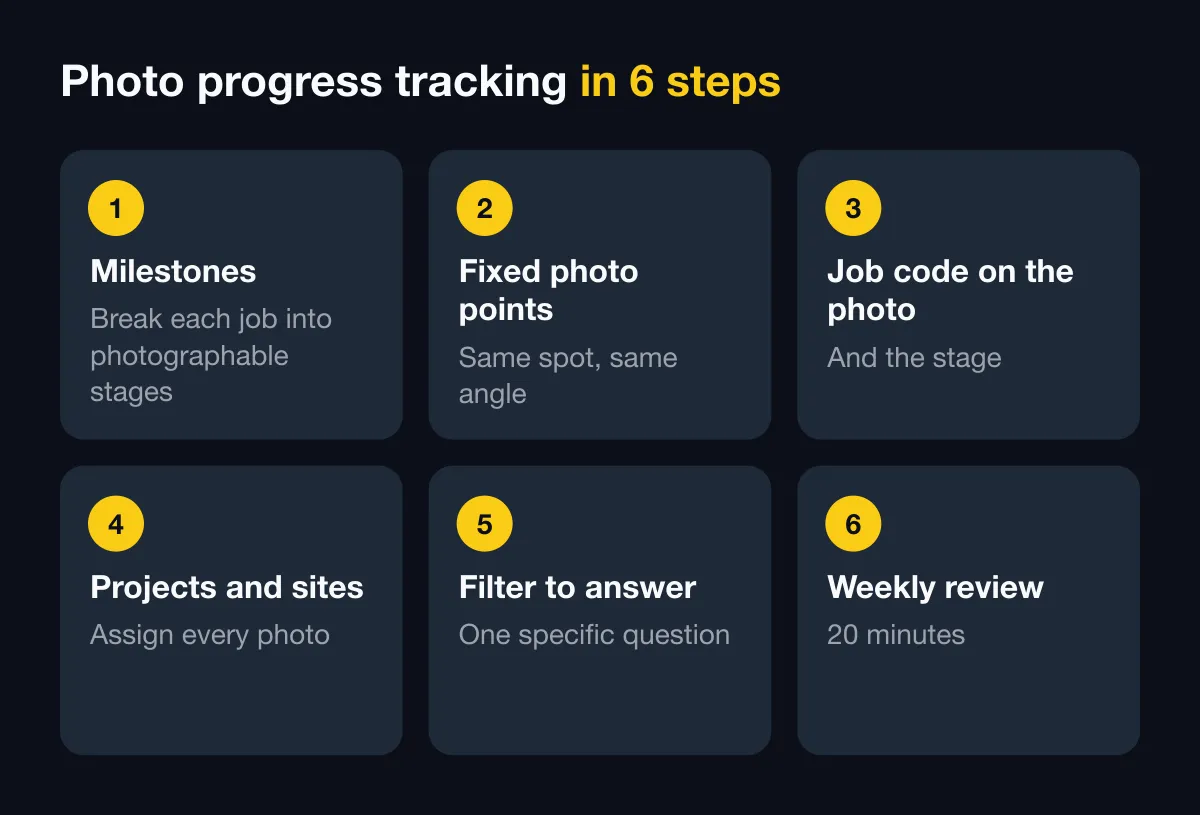
1. Break each job into photographable milestones
Do not shoot “progress” in general. Split each job into 3 to 6 milestones you can confirm by looking at a photo. Examples:
| Industry | Milestone 1 | Milestone 2 | Milestone 3 | Milestone 4 |
|---|---|---|---|---|
| Commercial cleaning | Before | In progress | Done | Hard areas (restrooms, glass) |
| HVAC maintenance | Unit label, condition | Panel open, failed part | After replacement | Unit running, gauge reading |
| Installation (CCTV, solar) | Area before | Cabling, mounts | Installed | Handover with client |
| Retail fit-out | Space handed over | Framing, ceiling, power | Finishes, shelving | Signage, opening |
| Construction | Below ground | Structure | MEP | Finishes |
For construction stages, also see the construction inspection photo checklist.
2. Fix your photo points and keep the same angle
For each area, pick one or two fixed spots: the main door, the foot of column 3, the end of the corridor. Shoot in landscape, at chest height, facing the same way. Put the point name in the stamp note, for example “Point A, main door looking in”. Next time, whoever takes the photo stands in the same place. Two same-angle photos side by side show progress better than any paragraph.
3. Put the job code and stage on the photo
This is the step that makes photos sort themselves. In SnapID Mark, the company adds custom fields to the stamp template, such as “Job code” and “Stage”. The photographer picks or types the value once, it is printed on the photo and travels with it to the workspace. See custom fields. To keep everyone on the same layout, the Owner can set a required template for the workspace. See template rules.
4. Assign photos to projects and sites
Create a project per client or contract, and a site per work location. Photos sent to the workspace land in the right project. How to structure projects, sites and work areas is covered in organize field photos by project.
5. Filter to answer a specific question
On the admin website, Owners and Admins filter photos by member, project, site, photo type, warnings, date and custom field. For example: “every photo for job HV-0412 this week”, or “Sam’s photos on the downtown store project since Monday”. The photo map shows where each photo was taken. See photos and filters.
6. Hold a 20-minute weekly review
This habit matters more than any tool. Same time every week:
- Filter by project, date range = last week.
- Put the latest milestone photo next to last week’s photo from the same point.
- Use “Mark as reviewed” so you know where to pick up next week.
- Write down three things: milestones reached, milestones late, decisions needed.
- Export a PDF or Excel file if a client or manager wants something to read. See exports.
Look at flagged photos first (outside the geofence, clock drift, late upload). That is usually where a follow-up question is needed.
Tracking work progress with photos by industry
- Cleaning: clients care about “was it done” more than “how far”. Before and after per area is enough. See cleaning and facility photo proof.
- Maintenance and field service: start with the unit label, then before and after. Make the work order number a custom field. See before and after photos for field service.
- Installation and retail fit-outs: use fixed photo points, because the job runs over several days and the client wants to see it move.
- Construction: weekly and monthly progress plus hidden works. See the dedicated guide to a construction progress photo report.
What SnapID Mark does not have
So you can choose well, here is what SnapID Mark does not do:
- No task assignment, to-do lists, forms or checklists in the app.
- No Gantt charts, scheduling or project management features.
- No drawings, BIM or pinning photos on floor plans.
- No team chat.
- No API or integrations with Trello, Asana or Google Drive.
- No ghost overlay to line up the previous shot; fixed photo points are a team habit, not an app feature.
What SnapID Mark does well is the photo itself: trusted time, GPS, job codes printed on the photo, photos grouped by project, filters and exports, and recipients verifying photos by QR without an account.
FAQ
Can progress photos replace project management software?
Not entirely. Photos show where the work is; project software shows where it should be and who owns it. Small teams with simple jobs can get by with photos and a weekly review. Teams with many dependent tasks should use both.
How many photos per milestone?
Usually 2 to 4: one wide shot from the fixed point, one or two close-ups, and a label or tag shot if there is one. More than that makes reviews slow.
How do I get staff to shoot the same angle every time?
Put the photo point in the stamp note, take a reference photo on day one and share it with the team. In the weekly review, point out off-angle shots so they get fixed next time.
Does a progress photo lose its time if there is no signal?
No. SnapID Mark stamps trusted time and a SnapID code offline. Photos wait in a queue on the phone and are sent when the connection returns. See working offline.
Can clients view progress photos without an account?
Yes. They scan the QR on the photo or enter the SnapID code to see the capture time, area and integrity flags. You can also send a time-limited share link. See sharing for verification.
Get started
Download SnapID Mark from the App Store or Google Play, then create a workspace with 5 free seats on the admin website. Still choosing a tool? Read field photo app and CompanyCam alternative.
Trello, Asana, WhatsApp, Zalo, Google Drive and other app names in this article are trademarks of their respective owners and are used for descriptive purposes only. Information about other apps is based on official pages as of October 2026 and may have changed.