
Construction Progress Photo Report: Weekly and Monthly Guide
How to build a construction progress photo report for owners and pay applications: fixed photo points, hidden works, period comparison and PDF export.
At month end, the owner wants to know how far the building has come before approving the pay application. The contractor sends a 40-page document full of photos, every one from a different angle, none labeled with a date or gridline. The owner spends a morning guessing which shots are from this month and which are from last. Payment slips another week.
This guide covers the construction progress photo report: the weekly, monthly or pay-period report that compares one period with the next. It is a different job from the daily report. For daily reporting, see construction daily photo reports and the daily construction photo report template. We make SnapID Mark and will be clear about what it does not do.
How a construction progress photo report differs from a daily report
| Daily report | Weekly or monthly progress report | |
|---|---|---|
| Main reader | Superintendent, inspector | Owner, owner’s rep, lender |
| Question answered | What happened today, who was on site, any incidents | How far along against plan, is the pay application supported |
| Photos | Many, follow the day’s activity | Fewer, curated, same photo points every period |
| Main value | Record | Comparison between periods |
| Filed with | Site diary | Pay application, owner report |
The daily report records what happened. The progress report shows how far the job has moved. So what matters most is not the number of photos, it is that photos from each period can sit side by side.
Many public owner specifications make this explicit: progress photos due with each pay application, a set number of views, repeat shots from the same vantage points, and digital date stamps. Some state that a pay application without the required photos is incomplete. If your contract has a progress photo clause, follow it first.
Step 1: Map fixed photo points
Before work starts, choose 6 to 15 fixed photo points for the whole site:
- Overall views: 2 to 4 points at site corners or from a neighboring building, covering the full footprint.
- Each elevation: one straight-on point per face.
- Each floor: 1 to 2 points, for example “Level 3, gridline A-1 looking toward D-5”.
- Special areas: elevator shafts, plant rooms, roof.
Keep a simple register: point code (P01, P02…), where to stand, direction, camera height. In the first period, take a reference shot for each point. Next period, the photographer opens the reference, stands in the same spot and shoots again. In SnapID Mark, put the point code in a custom field such as “Photo point” so it is printed on the photo and can be filtered. See custom fields.
Step 2: Capture hidden works before they are covered
Monthly overview photos only show surfaces. Payment disputes often come from what is no longer visible: rebar before the pour, conduit and pipes before drywall, waterproofing before tiling, underground services before backfill.
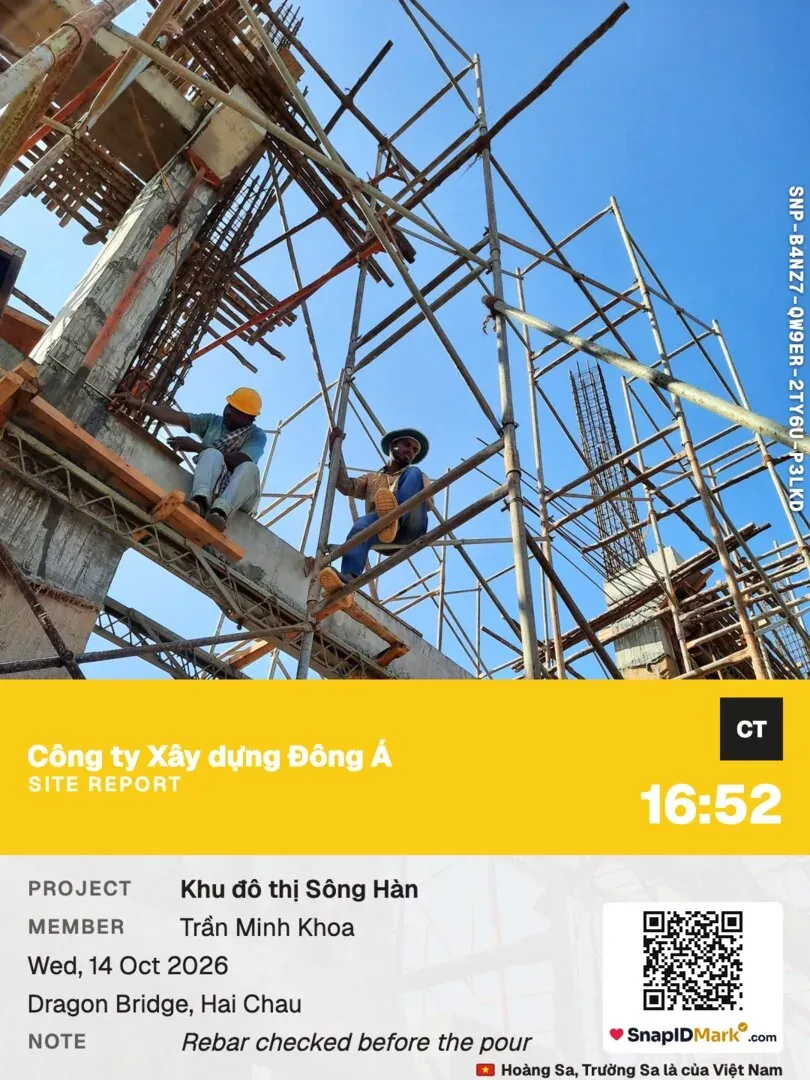
The rule is simple: nothing gets covered without photos. For each hidden item, take at least:
- A wide shot with a gridline or landmark that is easy to identify.
- Close-ups of the detail: bar spacing, diameter, laps, chairs.
- A shot with a tape or scale reference.
- The material tag or label, if there is one.
These photos are usually taken on the day and belong in the daily report. The monthly progress report only needs one summary page: hidden items inspected this period, 1 to 2 representative photos each, and the SnapID code so the owner can check the original record. The full stage-by-stage list is in the construction inspection photo checklist.
Step 3: Compare periods side by side
This is the page owners read most closely. One row per photo point, two columns: last period and this period. Under each pair, one line: “September: level 3 columns complete. October: level 3 slab complete, level 4 column forms up.”
Tips that make comparisons quick to read:
- Same point, same direction, landscape framing.
- Shoot in the same time window each period, for example 9 to 10 am, so the light matches.
- State percent complete from your schedule; photos are the supporting evidence.
Construction progress photo report structure
| Section | Contents | Tip |
|---|---|---|
| 1. Project details | Project name, period, prepared by, signatory | Half a page |
| 2. Progress summary | Planned vs actual percent, items achieved, items behind | Short table, no photos |
| 3. Overall views | Overall points, last period vs this period | 2 to 4 photo pairs |
| 4. Photos by area | By floor or zone, 1 to 3 photos per item | Caption under each |
| 5. Hidden works | Items inspected this period, representative photos, SnapID codes | One page |
| 6. Issues | Access, design holds, weather | Photos if useful |
| 7. Next period | Planned activities | No photos |
| 8. Sign-off | Signatures | Per contract |
When the report supports a pay application, keep photos curated. Photos support the record; they do not replace quantity surveys, inspection sign-offs or the documents your contract requires.
Ways to produce a progress photo report
| Approach | Strengths | Limits |
|---|---|---|
| Phone gallery pasted into Word or Excel | No new tools | Slow to find photos, time comes from the phone clock, easy to mix up periods |
| Chat group plus a Drive folder | Everyone knows how | Photos often compressed, manual naming, hard to filter by photo point |
| Construction project management platform | Typically drawings, tasks and logs in one place | Takes time to roll out; check their official pages for features and pricing |
| Field photo app such as SnapID Mark | Time, GPS and point code on the photo, filter by project and period, PDF and Excel export | No drawings, no scheduling, no Gantt |
If you are weighing a larger construction platform, read Procore alternative for small contractors and Raken and Fieldwire alternative.
Build a construction progress photo report with SnapID Mark
- Create a project and a site on the admin website, one project per job, with a geofence radius that covers the site.
- Build a stamp template for the job: contractor logo, project name, “Photo point” and “Work item” fields. Make it the required template so the whole crew uses it. See template rules.
- Shoot the point map each period. Time is synced with SnapID servers, so changing the phone clock does not change the time on the photo. Sites without signal are fine: photos queue and are sent when the phone is back online. See working offline.
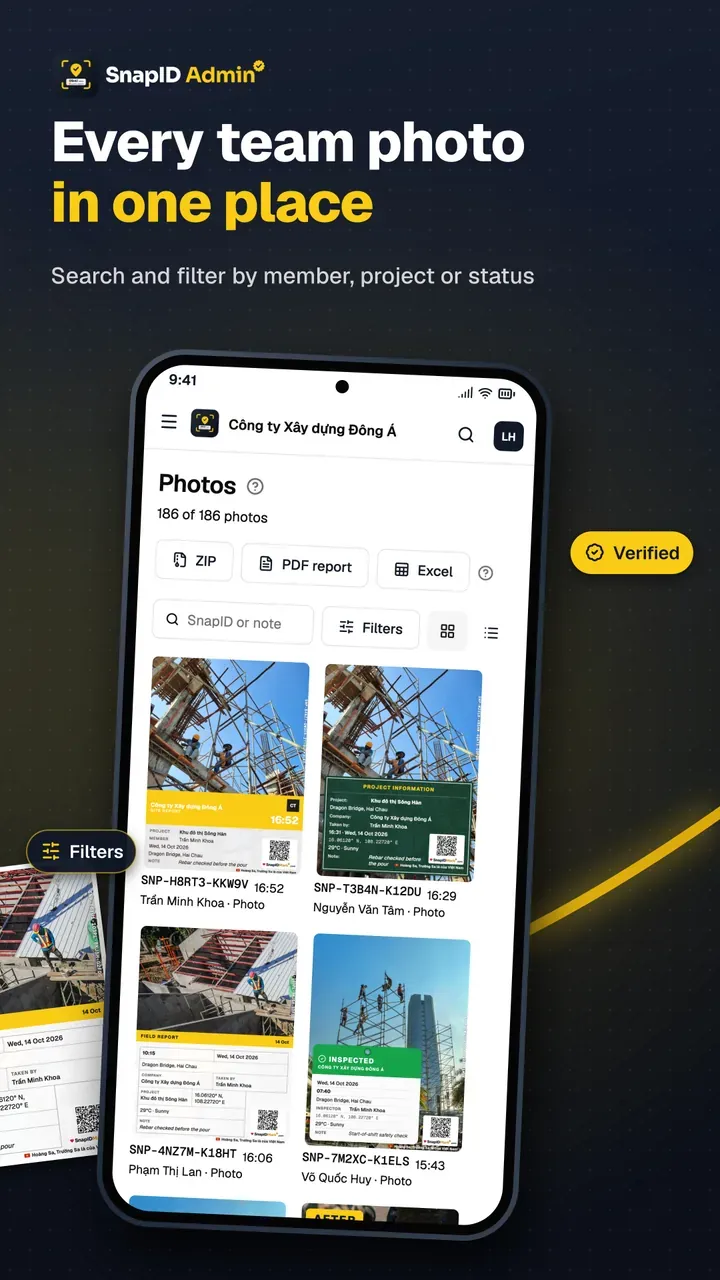
- Filter the period: project, date range, “Photo point” field. See photos and filters.
- Export: PDF up to 200 photos, 2 per page, as a photo appendix; Excel up to 2,000 rows as a photo register; ZIP of originals with metadata.csv for the project file. See exports.
- Assemble your report: the summary, percentages and sign-off stay in your company template. The owner scans the QR on any photo to see the capture time and area, and compares a file with the original using SHA-256. See verify by code.

Note: a SnapID code lets recipients check a photo, but it is not a legally certified timestamp. See timestamped photos as evidence.
What SnapID Mark does not have
- No scheduling, Gantt charts or percent-complete calculation.
- No drawings, BIM or pinning photos on plans.
- No built-in progress report template with quantities; the PDF export is a photo appendix.
- No forms, checklists or e-signatures for sign-off sheets.
- No API or integrations with other project software.
FAQ
Should progress reports be weekly or monthly?
Follow the contract and the owner. Weekly reports are usually short and go to the owner’s rep; monthly reports are fuller and support the pay application. Use the same photo point map for both.
How many photos per period?
Enough for one photo per fixed point, plus 1 to 3 per major work item. A monthly report of 20 to 60 photos is usually easy to read.
Do progress photos replace inspection sign-offs?
No. Photos support sign-offs and payment documents. Sign-off sheets still need the signatures your contract and local rules require.
How do I prove a photo is from this period?
Use an app that prints server-synced time on the photo and lets the recipient look up the original record. With SnapID Mark, the owner scans the QR to see the capture time and check whether the file was edited.
Should a progress report show weather?
Yes, when weather caused delays. SnapID Mark can print the weather at capture time on the stamp. See the weather-stamped site diary.
Get started
Download SnapID Mark from the App Store or Google Play, then create a workspace with 5 free seats on the admin website. See also track work progress with photos, electronic construction diary and construction photo apps with GPS.
Procore, Raken, Fieldwire and other app names in this article are trademarks of their respective owners and are used for descriptive purposes only. Information about other apps is based on official pages as of October 2026 and may have changed.