Clock In With a Phone App: 5 Methods, Fraud Risks and Setup
How to clock in with a phone app by GPS, Wi-Fi, QR, face or GPS photo: how each works, fraud risks, which apps support which method, and setup steps.
A wall-mounted time clock only works at one door. Once your staff work at job sites, other stores or customers’ homes, the usual next step is to let everyone clock in with a phone app on their own phone. Then the real questions start: which method, and how do you stop buddy punching and fake clock-ins?
This guide walks through the five common ways to clock in on a phone, how each one works, its pros, cons and fraud risk, which apps support which method, and a step-by-step setup. We make SnapID Mark, so we say plainly that it supports only one of these five methods, and we list what it does not do.
Quick verdict
| Situation | Method that usually fits |
|---|---|
| One office, everyone on the same network | Wi-Fi, or a QR code at the door |
| You must be sure it is the right person and can handle biometric data | Face matching (selfie checked against an enrolled face) |
| Staff at many places, you only need time and location | GPS with a geofence |
| Many places, and managers or clients want visible proof | GPS photo (a photo at Clock in and Clock out) |
| You also need payroll, scheduling and leave | An HR suite with a mobile time clock, optionally plus a photo app for field crews |
The 5 ways to clock in with a phone
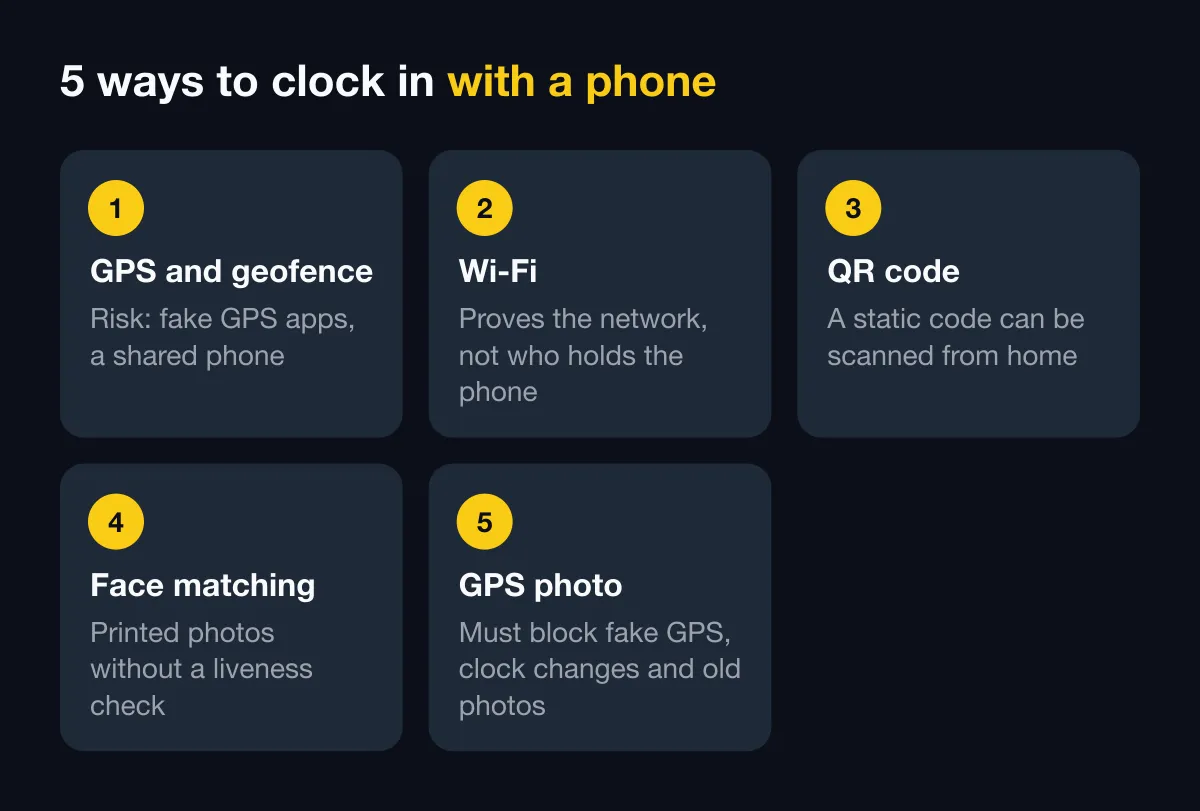
1. GPS and geofence
The app reads the phone’s location when the person taps clock in and compares it with a circle around the workplace (a geofence). Inside: accepted. Outside: blocked or flagged.
- Pros: no hardware, works across many locations.
- Cons: GPS drifts indoors and in basements. A radius that is too tight blocks people standing in the right place. See how to pick a geofence radius.
- Fraud risk: mock-location (fake GPS) apps, or handing the phone to a coworker.
2. Wi-Fi
The app accepts a clock-in only when the phone is connected to the office Wi-Fi (by network name, sometimes also by router address).
- Pros: easy for offices, not affected by poor indoor GPS.
- Cons: useless in the field. A new router means new setup.
- Fraud risk: it proves the phone is on the network, not who holds it. A name-only check can be fooled by a hotspot with the same name.
3. QR code
The company prints a QR code at the entrance, and staff scan it with the app. Some systems show a code on a screen that changes every few seconds.
- Pros: cheap and fast for shops and warehouses.
- Cons: each location needs a fixed spot for the code.
- Fraud risk: a printed static code can be photographed and scanned from home. Rotating codes, or a location check on top, reduce this.
4. Face matching
The app takes a selfie and compares it with the person’s enrolled face. Some also check for movement to reject printed photos.
- Pros: the hardest of the five to buddy punch.
- Cons: affected by lighting, masks and hard hats. You collect biometric data, which privacy laws usually treat as sensitive.
- Fraud risk: printed photos or videos if the app has no liveness check.
5. GPS photo
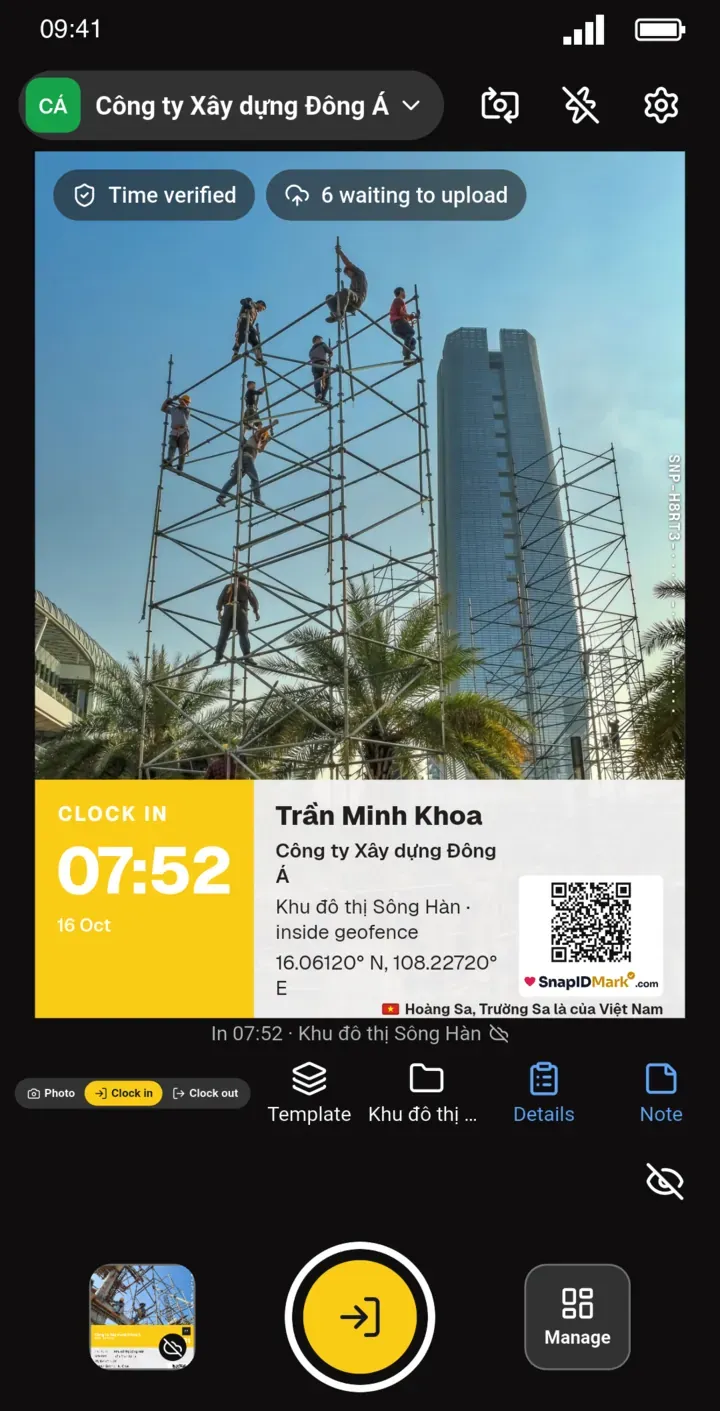
The person takes one photo at the workplace at Clock in and Clock out. The photo is stamped with time, coordinates and address and checked against the geofence. The photo is not used to recognize faces. It shows the manager where the person is and what the place looks like.
- Pros: one photo is both the attendance record and proof of presence. No biometrics.
- Cons: still depends on GPS. Someone has to look at flagged photos.
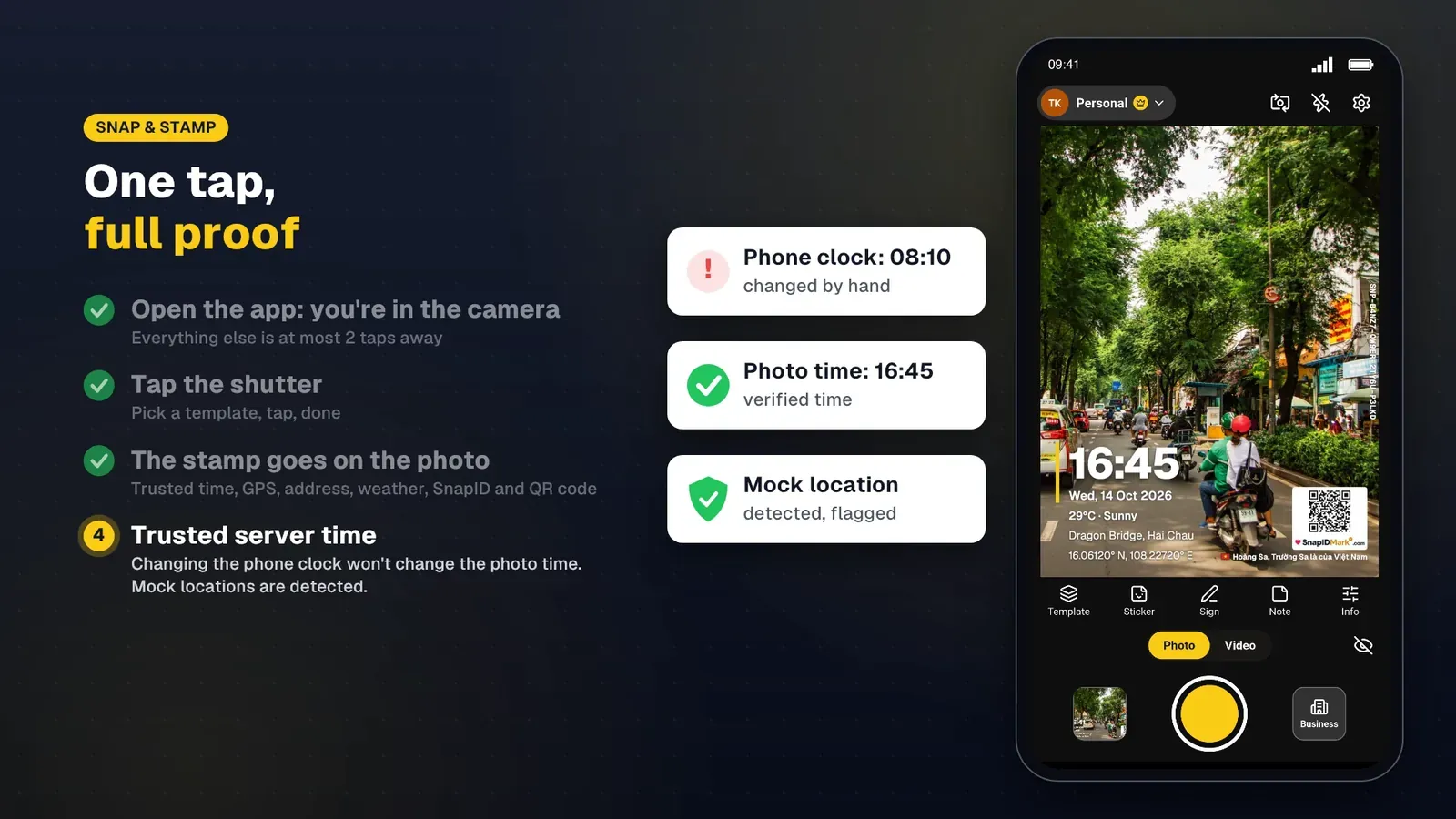
- Fraud risk: fake GPS, changing the phone clock, reusing an old photo. A good app should block all three.
For a wider comparison that includes paper and fingerprint clocks, see attendance methods compared.
Can people cheat when they clock in with a phone?
Yes, if the app trusts everything the phone reports. The usual gaps are time (changing the phone clock), location (mock-location apps, rooted phones) and person (handing the phone over). Ask any vendor:
- Does the clock-in time come from a server or from the phone clock?
- Does the app detect mock-location apps and rooted or jailbroken phones?
- Can people pick an old photo from the gallery?
- Are late uploads marked?
- Can a manager review suspicious records?
No method stops everything. Specific tricks and fixes are covered in how to stop attendance fraud.
Which apps support which method
Facts come from each vendor’s official pages as of October 2026. “Not described” means we did not find it on their official pages, not that it is missing for sure.
| App | GPS, geofence | Wi-Fi | QR | Face | Photo on every clock-in | Payroll |
|---|---|---|---|---|---|---|
| SnapID Mark | Yes, 20 m to 50 km | No | No | No | Yes, stamped photo with a SnapID code | No, Excel timesheet export |
| MISA AMIS Attendance | Yes | Yes | Yes, static and rotating codes | Yes (FaceID) | Not described | Yes, links to AMIS Payroll |
| Tanca | Yes, by radius | Yes | Yes (per its user guide) | Yes (Face ID) | Not described | Yes |
| Jibble | Yes | Not described | Not described | Yes, plus kiosk | Not described | QuickBooks integration (per its home page) |
| Connecteam | Yes, plus GPS tracking on shift | Not described | Not described | Selfie on a shared kiosk | Not described | Syncs with payroll providers |
| Timemark | GPS on the photo, geofence not described | Not described | Not described | Not described | Yes | Not described, Excel export |
For prices, check each vendor’s pricing page. Detailed one-to-one comparisons: Connecteam alternative and MISA AMIS attendance alternative.
How to choose a method
- Everyone works in one office: Wi-Fi or QR is enough and quick to roll out.
- People work at different places each day: GPS or GPS photo. If you run fixed branches, read multi-location attendance.
- You must show clients proof (cleaning shifts, security shifts, construction): GPS photo with a verification code.
- You need automatic payroll: pick an HR suite, or use a time clock app and bring its Excel timesheet into your payroll tool.
Set up phone clock-in with SnapID Mark
SnapID Mark uses method five only: GPS photo. These steps take about 30 minutes for a small team.
- Create a workspace. Install the app, create an account and create your company workspace. New workspaces are approved by the SnapID team, and no payment card is needed.
- Add sites and geofences. On the admin website, open Rulebook › Workplaces, search an address or tap the map, and set a radius from 20 m to 50 km. Starting at 100 m or more is safer.
- Set shift rules. In Rulebook › Shifts & attendance: shift start, late-after time, work days, break, time zone, and whether clock-in is allowed only inside a site. See Rulebook.
- Invite members. Share a code or link, or upload a CSV. Every workspace includes 5 free seats.
- First Clock in. Members open the camera, pick Clock in and take a photo. The camera shows Inside or Outside. At the end of the day they pick Clock out.
- Check the timesheet. Owners and Admins see each day’s status (On time, Late, Missing clock-out, Absent), add a missed clock-out by hand (with a change log) and export the Excel timesheet.
A one to two week pilot plan with a first-week checklist is in the photo clock-in rollout guide.
What SnapID Mark does not have
- No Wi-Fi, QR or face-recognition clock-in.
- No kiosk or shared device. Each person uses their own phone and account.
- No payroll, scheduling or leave management.
- No all-day location tracking. Location is read only while the app is open to take a photo.
- No API or integrations yet, no SSO.
FAQ
Can employees cheat when they clock in with a phone?
They can if the app trusts the phone’s clock and location. In SnapID Mark the stamped time is synced with SnapID servers, workspaces block capture while a mock-location app is on, and rooted devices, outside-geofence photos and late uploads are flagged for Owner and Admin review.
What if there is no internet connection?
In SnapID Mark, people still clock in and out as usual. The correct time is kept by a trusted clock, and the photo waits in an on-phone queue and is sent once the phone is online. Photos uploaded more than 15 minutes late are marked for cross-checking.
Can staff use their personal phones?
Yes. Write down in your policy that location is read only at clock-in and who can see the photos.
Is a selfie required?
Not in SnapID Mark. The front or back camera both work. The photo proves presence at the workplace and is not used for face recognition.
Can a phone app replace a fingerprint time clock?
For teams spread across many places, usually yes. A factory where hundreds of people pass one gate may still be faster with a fixed device.
Get started
Download SnapID Mark from the App Store or Google Play, then open the admin website to create your workspace and first site. Comparing tools? Read employee attendance management software and free GPS attendance apps.
MISA AMIS, Tanca, Jibble, Connecteam, Timemark and other app names in this article are trademarks of their respective owners and are used for descriptive purposes only. Information about other apps is based on their official pages as of October 2026 and may have changed.