Managing Field Sales Reps with Photo Check-Ins
Attendance for field sales reps with no office: clock-in photos at the first stop, visit photos with a store code, a daily review routine and limits.
Field sales reps, merchandisers and promoters rarely set foot in the office. A fingerprint clock is useless, and a chat message saying “I’m at the store” can’t be checked. Many companies switch to attendance and reporting with photos that carry time and location. This guide covers the management side: how to clock in, how to review and what rules to set.
For which photos to take at each store (displays, POSM, share of shelf), see retail store visit photos.
Three kinds of photos in a route day
| Photo | When | Purpose |
|---|---|---|
| Clock in | At the first store or the meeting point | Records the start of work |
| Visit photo | At every store | Shows the rep was there and records store conditions |
| Clock out | At the last stop | Records the end of work |
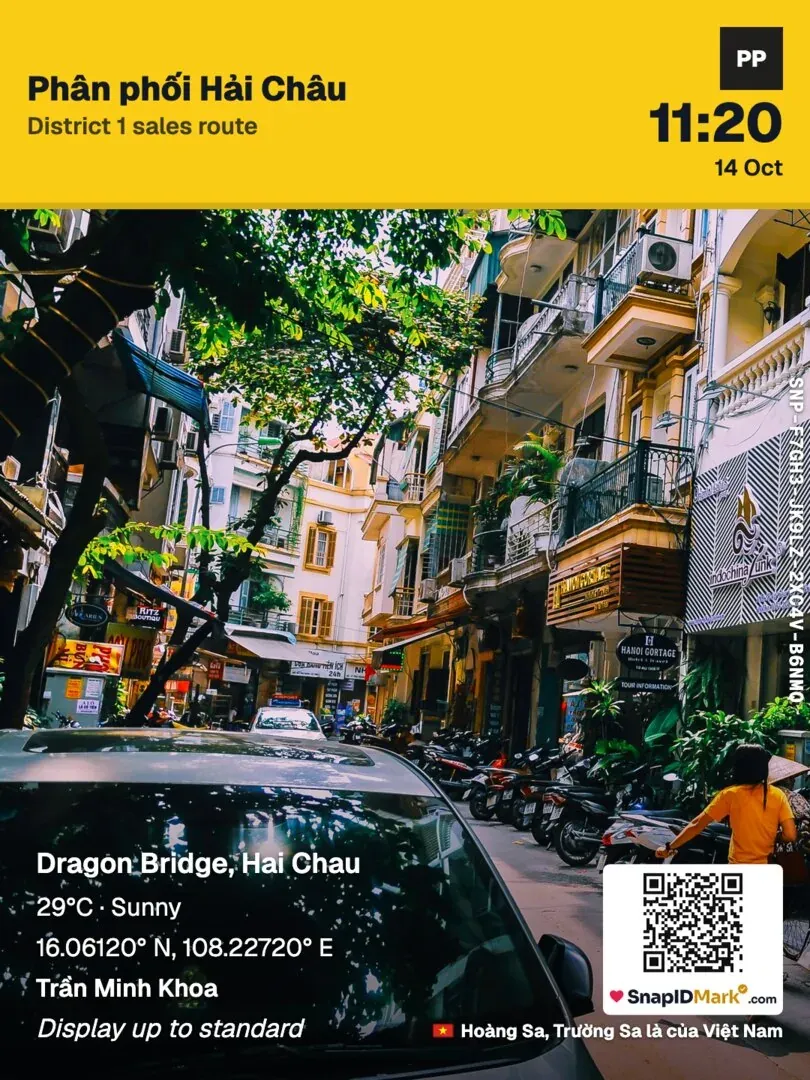
Keeping them separate stops the timesheet from mixing with report photos. Visit photos are ordinary work photos that carry a store code and route for filtering later.
How to set up sites and zones
Field teams have two options:
- Add stores as sites, each with its own radius. Photos taken outside the zone get an Outside the site area flag for the supervisor to review. Best for fixed routes with a manageable number of stores.
- Add only meeting points (warehouse, branch), and record the store in a Store code field. Best for routes that change often.
If you turn on require clock-in inside the zone, the app blocks Clock in photos outside a site. For route-based reps, think this through: the first stop each day must be inside a site you have added. For radius advice, see geofence attendance radius.
What visit photos should carry
Create a few custom fields on the admin website:
- Store code (text or list), required.
- Route (list).
- Photo type: storefront, shelf, POSM, stock (list).
- Order placed (checkbox), if useful.
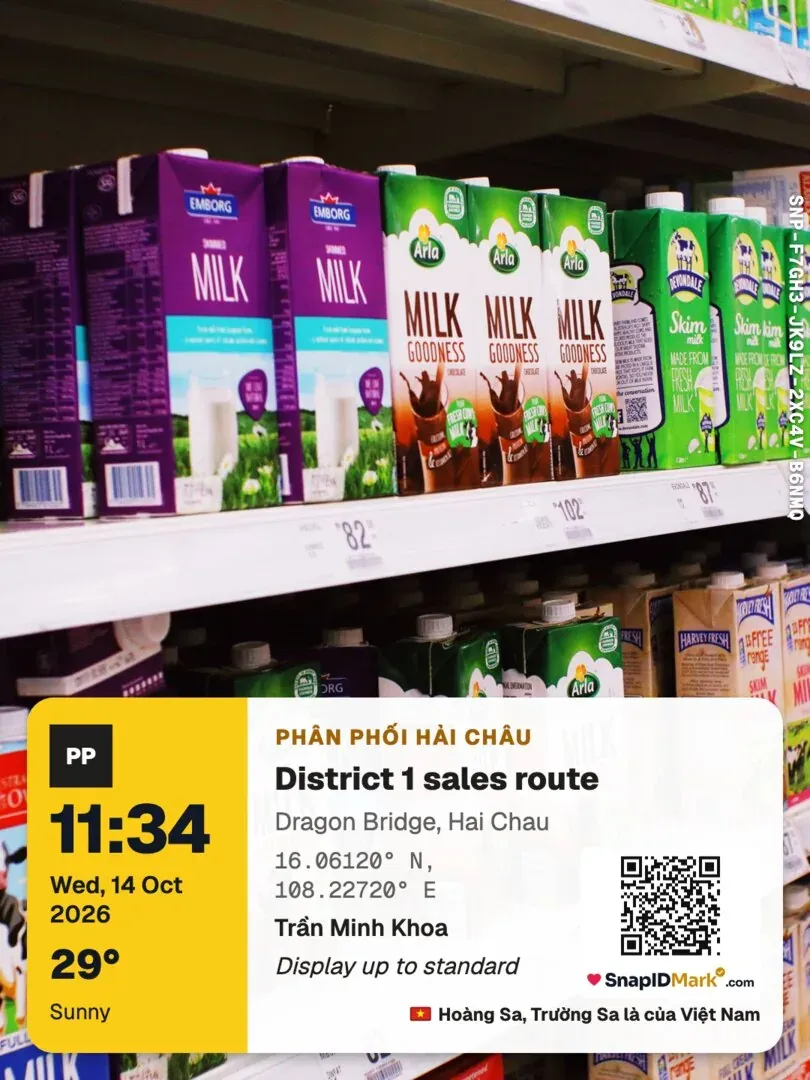
Then set a required stamp template for the team so every photo shows the time, address, store code and logo. Members can only shoot with the templates the company sets. See Stamp templates.
A 15-minute daily review for supervisors
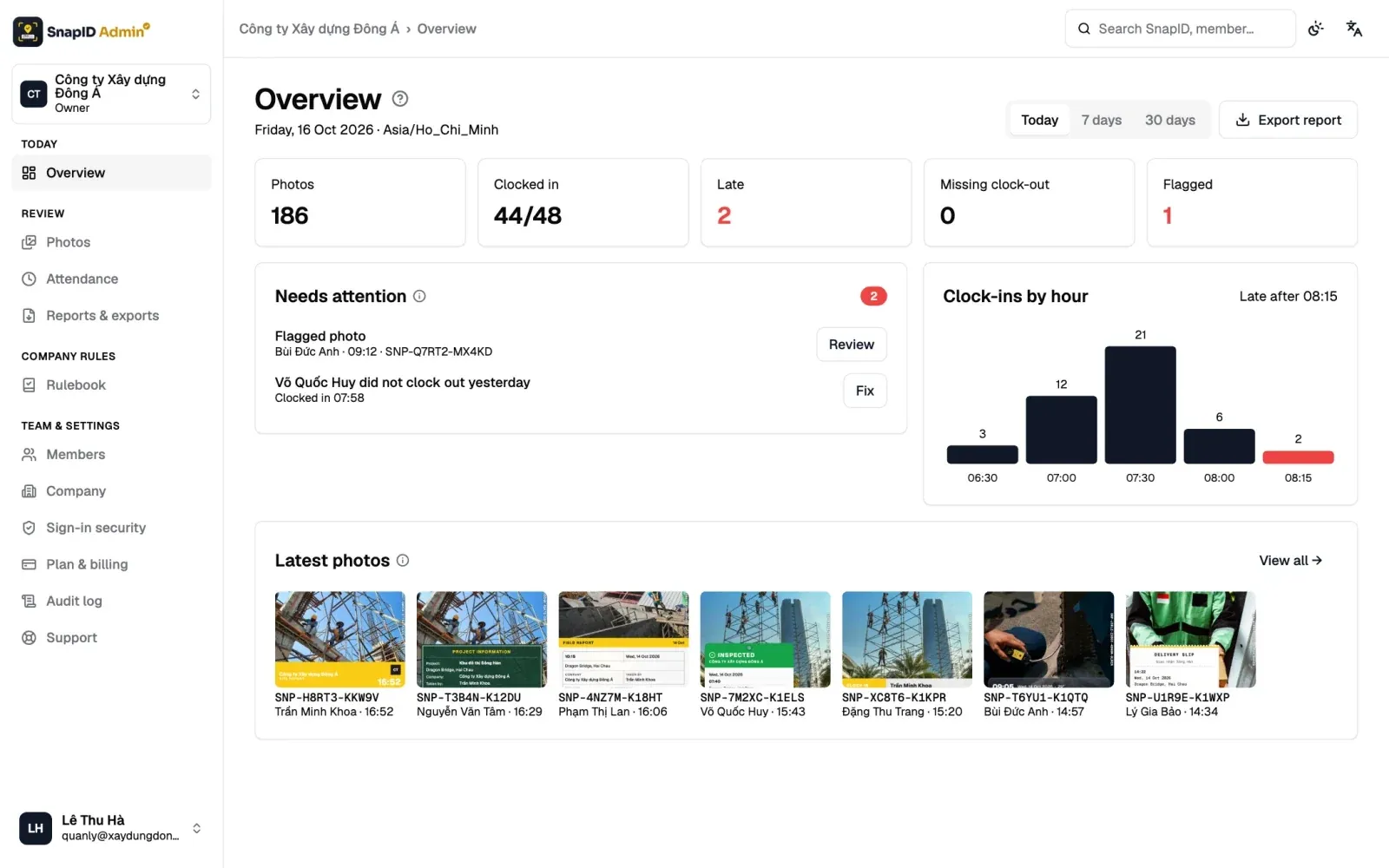
- Open Attendance on the admin website and check who has Missing clock-in, Late or Absent.
- Open Photos, filter by date and by warnings. Look at photos flagged Outside the site area or Low GPS accuracy. See Photo flags.
- Filter by Route to see how many stores each rep visited.
- Click Mark as reviewed on photos you have checked.
At month end, export the Excel timesheet and the photo Excel (each custom field becomes a column) to count visits per rep and per route. See Export data.
Rules worth writing down
- Start time, starting point, and what happens when someone forgets to clock in.
- The minimum photos required at each store.
- How flagged photos are handled. A flag does not mean fraud, only that something needs a question.
- Location is recorded only when a photo is taken, never tracked all day.
A full policy template is in photo attendance policy. For common cheating patterns and how to reduce them, see stop attendance fraud.
Limits to know up front
SnapID Mark is not sales force automation or distributor management software. Specifically:
- No route tracking and no map of the day’s path. Location is read only while the app is open to take a photo.
- No time-at-store measurement. You can estimate it from the first and last photo at a store.
- No route planning, order taking, stock or promotion management.
- No Wi-Fi or face recognition clock-in, no payroll.
- No API or integrations yet, no SSO.
If you already run sales software, SnapID Mark can sit next to it for verifiable photos and photo clock-ins.
FAQ
What if a rep uses a fake GPS app?
In a workspace, the app blocks capture when it detects a mock-location app. See Location and GPS.
Can reps clock in without signal in markets or basements?
Yes. Attendance uses the trusted capture time, and the photo uploads when signal returns. Photos uploaded more than 15 minutes late are flagged so the Owner and Admins can check. See Photo attendance.
Is a selfie required?
No. Clock in and Clock out photos can use the front or rear camera. Many teams photograph the storefront instead of a selfie.
Get started
Download SnapID Mark, create a workspace on the admin website and pilot it on one route for a week. To compare other attendance apps, see photo attendance apps compared.